GLS
If you have a carrier contract with GLS, you can integrate this shipping contract in Returnless. This way you can offer the GLS shipping methods to your customers, while using your own negotiated rates.
In this article:
How to install
To add a new GLS shipping contract, follow these steps:
- Login to your Returnless panel
- Navigate to the Integrations menu.
- Click the Shipping contracts tab.
- Click the Add shipping contract button
The following modal will popup that you have to fill in in order for the integration with GLS (Netherlands):
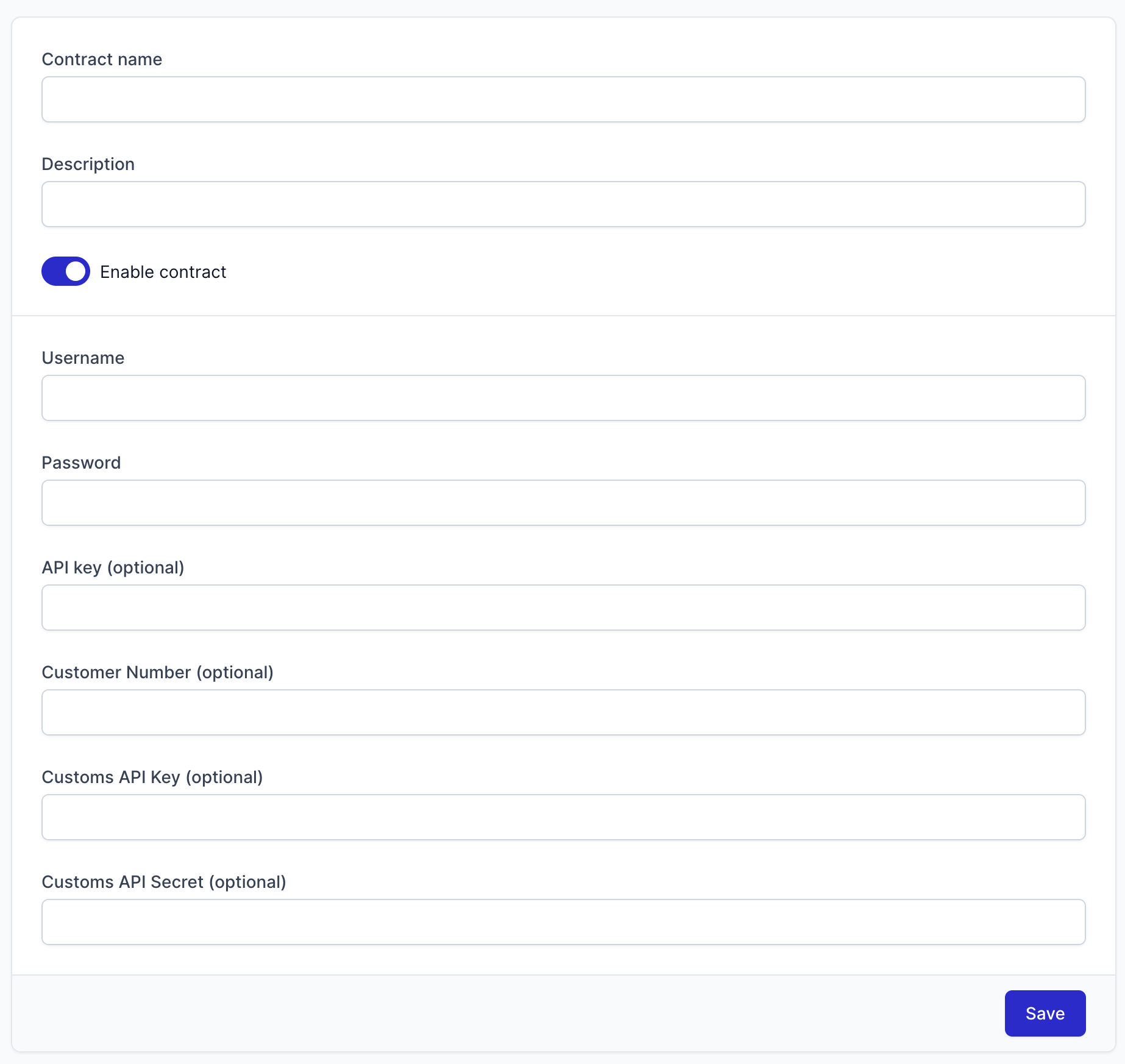
The following are the fields you need to configure:
| Field | Description |
|---|---|
| Username | This is your GLS API-account username (e.g. returnless-api). Please request this API-account username and password via your GLS account manager. |
| Password | This is your GLS API-account password. |
| API Key (optional) | You can choose to give API Key to Returnless for API usage, you can generate your API key within the GLS Developer Portal |
| Customer Number (optional) | The GLS customer number is linked to the API account and will be provided by your GLS account manager (e.g. 35001234). |
| Customs API Key (optional) | API Key and API Secret are needed to be set if you want to transfer customs data to GLS. To get your API Key and Secret, open the GLS developer portal and follow the “Get Started” instructions (enable the Customs API). Your customs-API usually looks like: Abc1dE2fgHi4JKLMn5oPuvw6XYz |
| Customs API Secret (optional) | API Key and API Secret are needed to be set if you want to transfer customs data to GLS. To get your API Key and Secret, open the GLS developer portal and follow the “Get Started” instructions (enable the Customs API). Your Customs-API Secret usually looks like: 0A1b2Cd3eFG4hIj5 |
Please note: Contact your GLS account manager to request activation for tracking updates. If this option is not activated, you will not be able to receive any status updates in your Returnless panel.
Pick-up returns through GLS
GLS supports the following shipping methods for pick-ups:
- GLS BusinessParcel Return Pick Up 0-32kg
- GLS EuroBusinessParcel Return Pick Up 0-32kg
Once a pick-up has been scheduled, the pick-up will take place on the next working day between 9:00-17:00 for locations in the Netherlands. When the return is notified after 17:00, the pick-up will be scheduled two working days later. Example: Pick-up is scheduled on Wednesday at 17:10. Pick-up in this case will take place on Friday, instead of Thursday.
Your customer will receive an e-mail confirmation after the return has been registered in the Returns Portal, the pick-up will also be confirmed herewith.