Wics
By connecting a Wics web store to Returnless, you can easily set up a return form for your web store. Returns that are created can then be easily, automatically processed. The Wics integration has these features
In this article:
Features
| Feature | Available |
|---|---|
| Search order | ✅ |
| Create coupon | ❌ |
| Create refund | ❌ |
| Create gift card | ❌ |
| Create return | ✅ |
| Return importer | ❌ |
How to install
The connection is set up via the Wics API.
Adding an integration
To create a new integration between Returnless and Wics, follow these steps:
- Login to your Return panel
- Navigate to the Settings > Integrations page where you will find the E-commerce platform section.
- Select the Add new integration button.
- Select the Wics integration. A modal will open with further instructions to finish the installation.
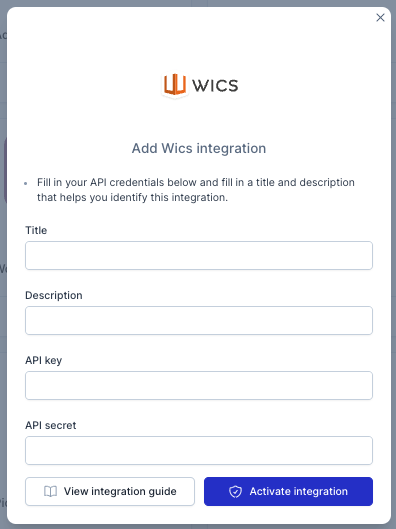
Here are the fields to enter:
| Field | Description |
|---|---|
| API Key | API Key for Wics |
| API Secret | API Secret for Wics |
Activating the integration
To activate the integration, you will need to enable the integration in a return form. Follow these steps:
- Login to your Return panel
- Navigate to Settings > Return forms and open the applicable return form.
- Go to the Integrations tab and select the Wics which you've added in the previous step.
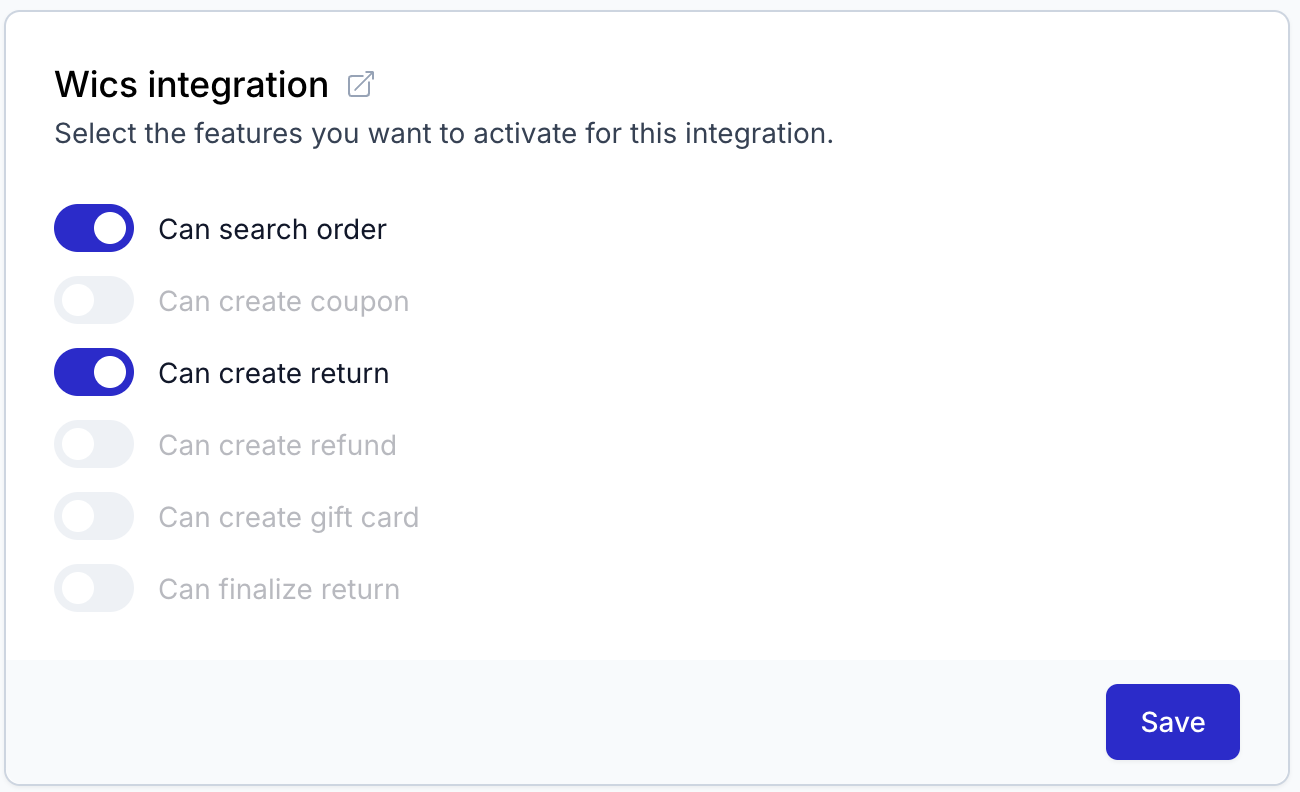
Enable the 'Create return' feature
In order to start using the create return feature of the Wics integration, make sure the feature is enabled. To do so, navigate to Settings > Return forms > Return form settings > Integrations. Here, enable the option that says create return.
Creating a return in Wics
To create a return, you can click on the create return button on the return detail page. You can also automate this step by setting up an automation (see Automations).
Webhook updates
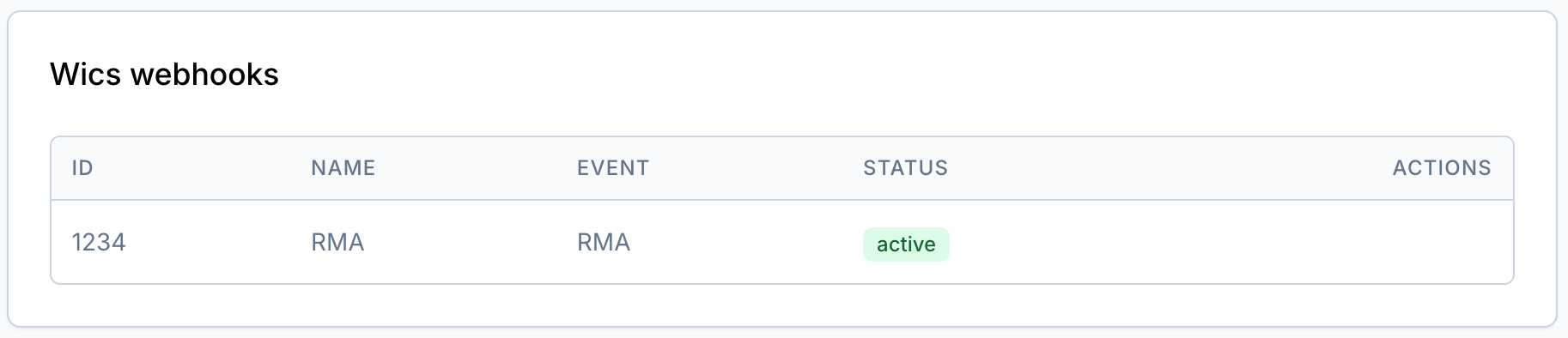
Once the integration is set up, a webhook will be registered in the integration. This allows Returnless to stay up to date with the latest changes in Wics.
In order to see the webhooks, navigate to Settings > Integrations > Wics.