ChannelEngine
By connecting your ChannelEngine account with Returnless, you will be able to process marketplace returns through Returnless or create merchant returns using your return form.
You can work in two ways:
- Search order: connect your Returnless return form to ChannelEngine, and make it possible for your customers to find their marketplace order in the return form. This is especially convenient if you do not want to or cannot use the return panel of the marketplace.
- Return importer: you can also decide to use the return panel of the marketplace. For example for Bol.com you can benefit from their cheap return shipping labels. After the returns are created in the marketplace, they will be imported in Returnless. This way, you can find all returns from each sales channel in Returnless.
In this article:
| Feature | Available |
|---|---|
| Search order | ✅ |
| Create coupon | ❌ |
| Create refund | ❌ |
| Create gift card | ❌ |
| Create return | ❌ |
| Return importer | ✅ |
| Finalize return | ✅ |
How to install
The connection is set up via the ChannelEngine API.
Creating ChannelEngine credentials
To make a connection to your ChannelEngine portal, you will need to create a new API user for Returnless. To do that, follow these steps:
- Login to your ChannelEngine portal.
- Click the Settings tab, and select the Merchant API keys tab.
- Click the Add button and name your integration (for example Returnless).
- Click the Add button to generate a new API key.
Adding an integration
To create a new integration between Returnless and ChannelEngine, follow these steps:
- Login to your return panel
- Navigate to the Settings > Integrations page where you will find the E-commerce platform section.
- To add a new integration, select the Add new integration button.
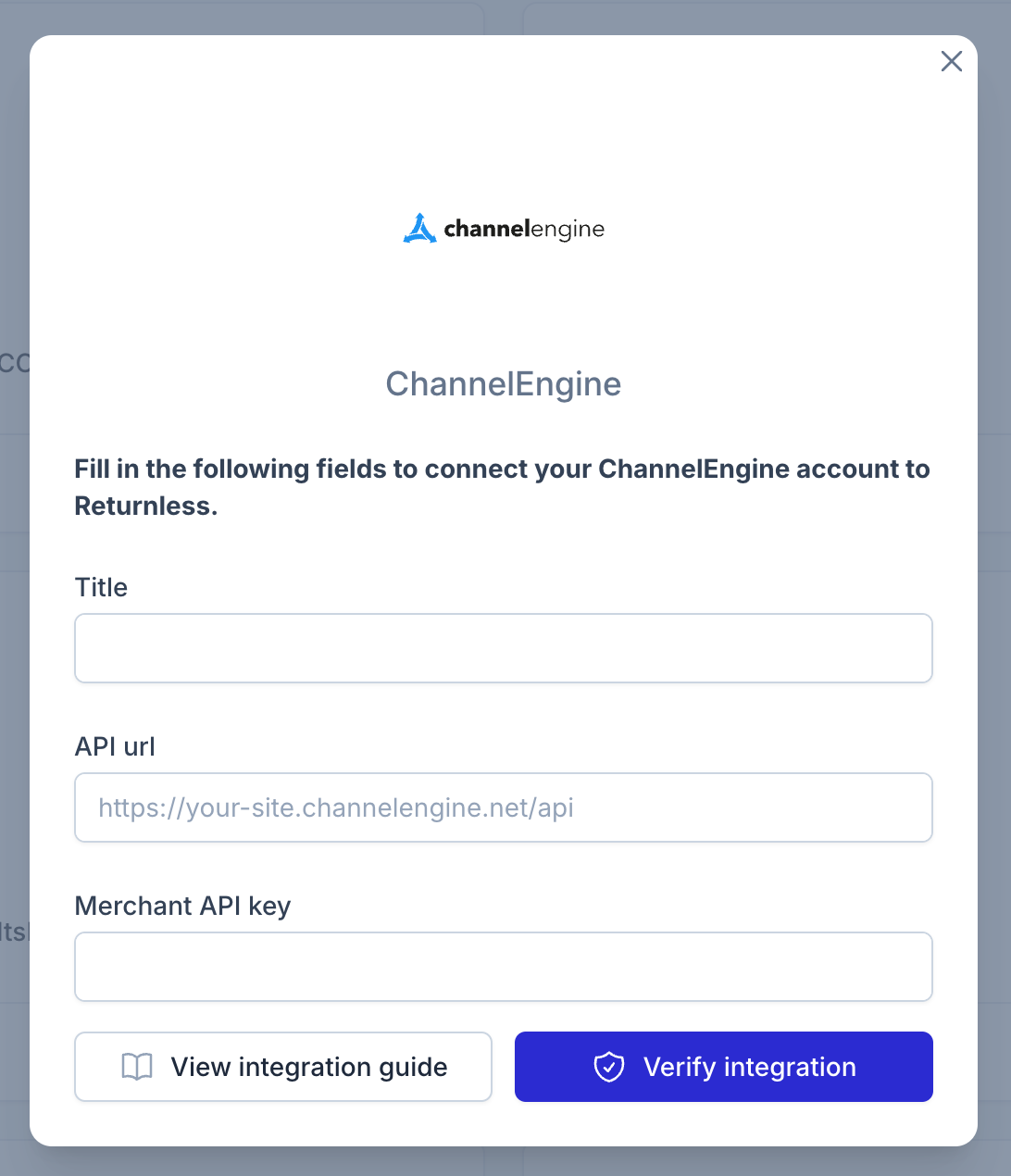
- Select the ChannelEngine integration. A modal will open, asking you to enter the API URL and the API key that you created in the previous step.
Activating search order feature
To activate the functionality to search for a marketplace order, you will need to enable the integration in a return form. Follow these steps:
- Login to your Return panel
- Navigate to Settings > Return forms and open the settings of the applicable return form.
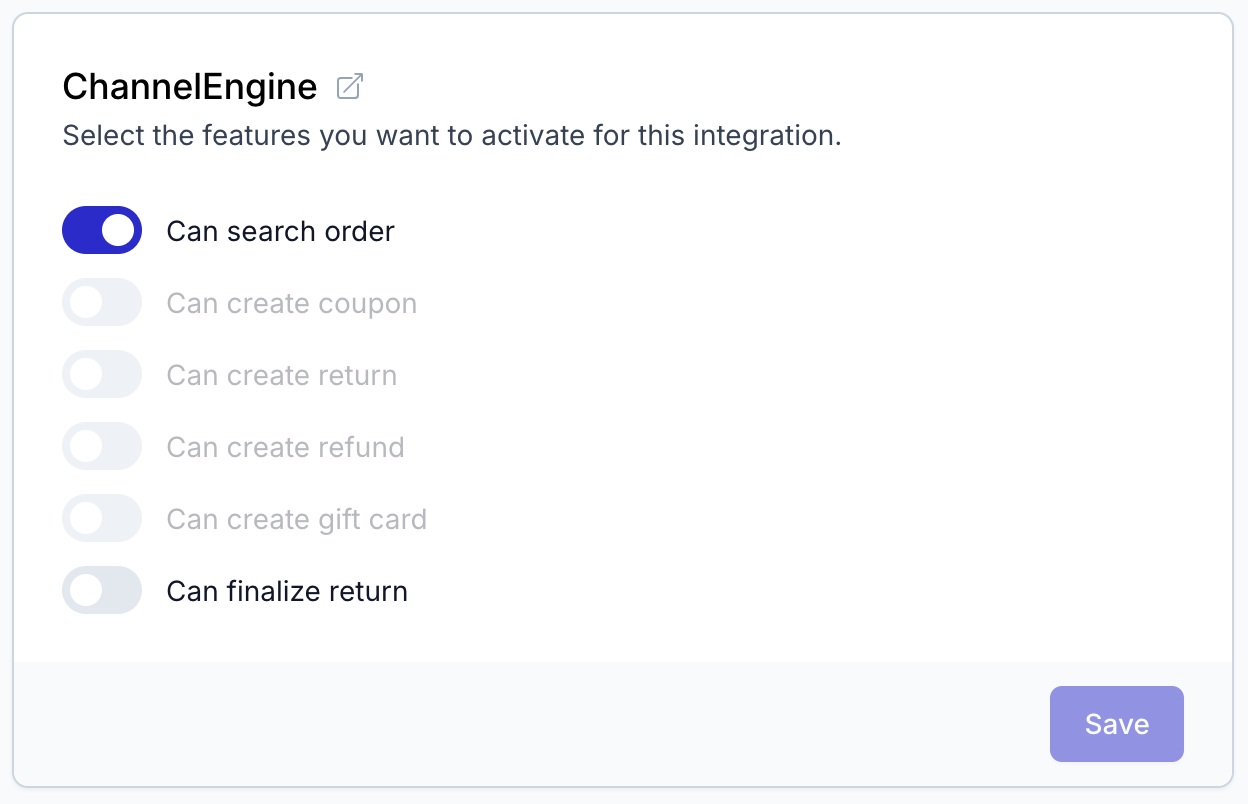
- Go to the Integrations tab and set the Default search integration to your ChannelEngine integration. Doing this will automatically enable the Can search order trait in the integration trait overview for the integration.
Retrieve Bol tracking data
If you are using Bol return service, Returnless is able to fetch the tracking numbers of shipments. This behaviour is not enabled by default as it requires a setting in ChannelEngine to be changed.
To enable the tracking numbers for Bol shipments, follow these steps:
- Navigate to your ChannelEngine and log in.
-
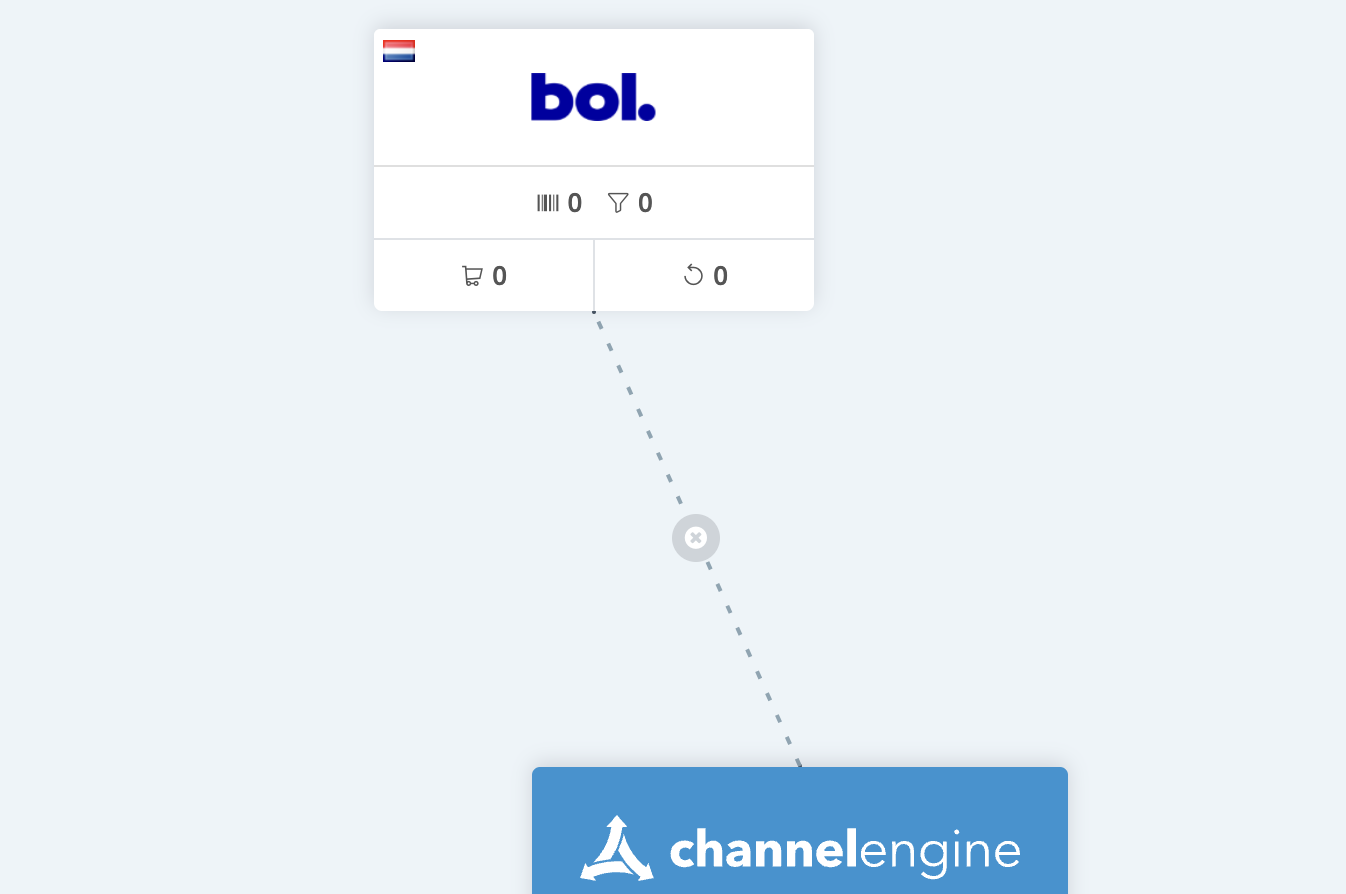
In the Dashboard, click on the Bol integration to open its settings.
-
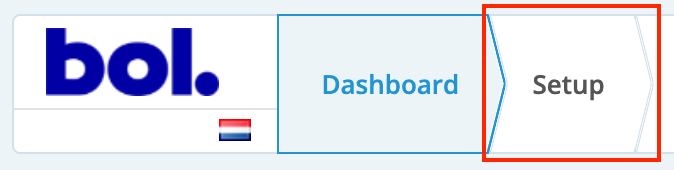
In the top bar, click on Setup.
- Open the Advanced settings and enable Import FBR detailed return info.
- Click Save.
Shopify Order Number lookup
It is possible that the Shopify Order Number which is known by your customers is not the same as the ChannelOrderNo or CommercialOrderNo in ChannelEngine. This causes consumers to not be able to look up their order when they provide the order number.
To fix this issue, navigate to your Shopify Channel plugin > Advanced settings. Here you will find 2 settings:
| Setting | Description |
|---|---|
| Use Shopify Order Number as Commercial Order Number | Allows the merchant to specify that the Shopify Order Name field should be filled in the Commercial Order Number field. Set this to active. |
| Order Name Prefix To Strip From Commercial Order Number | Allows the merchant to strip a certain prefix from the start of the Commercial Order Number. Example: if filled with #, the order name #DE1234 would be changed to DE1234. If a prefix needs to be stripped so that it is the same as the order number that is known by consumers, fill in what part of the order number needs to be stripped. |
Activating finalize return feature
To start marking returns in ChannelEngine as received, the finalize return trait needs to be enabled. If the return in Returnless was created using the return form, we will create a merchant return and mark that as received. Marking a return as received in ChannelEngine will often trigger a refund.
To do so, follow these steps:
- Login to your Return panel
- Navigate to Settings > Return forms and open the settings of the applicable return form.
- Go to the Integrations tab
- Scroll down to the ChannelEngine integration and enable the option Can finalize return
Important: The refund flow is managed by ChannelEngine. Whether a refund can/will be executed can depend on several factors such as which marketplace the order is related to or whether a refund was already created for the order. For more information regarding returns and how its refunds are handled in ChannelEngine, refer to the ChannelEngine helpcenter.
Settings
- Login to your return panel
- Navigate to the Settings > Integrations page where you will find the E-commerce platform section.
- Click the Settings button at the appropriate ChannelEngine integration. Here you will find the settings for the integration.
Activating importer feature
The importer functionality will run once every hour at 5 minutes to the full hour (8:55, 9:55, ...)
To start importing returns from ChannelEngine to Returnless, follow these steps:
| Setting | Description |
|---|---|
| Enable importer | Enable this toggle to start importing returns. Returnless will only import new returns that have been created after the importer was enabled. So existing returns in your ChannelEngine account are not imported. |
| Import to form |
Returns need to be attached to a return form in Returnless. Some settings (like email notifications and automations) can be configured in the form. By default, a virtual form is used to attach the imported returns. A virtual form is only used internally and is not visible to your customers. It also does not support automations. If you want to attach the returns to one of your existing forms, you can choose the applicable form. |
| Default return status | Select the status that new returns should have. |
| Import fulfillment type |
Decide which type of returns you want to import: - Merchant: returns that need fulfillment by the merchant. - Channel: returns that need fulfillment by Channel / Marketplace (for example Fulfillment by Amazon). - All: returns that need fulfillment by merchant or Channel / Marketplace. |
| Filter on channels | Decide if you only want to import returns that have been created on a specific marketplace / channel. |
| Filter on return statuses | Decide if you only want to import returns with a specific status. We suggest to only import returns that are In Progress. |