Product analytics
The Product Analytics provides an overview of your returned items data, helping you identify trends, high-return products, and the specific reasons why customers are sending items back. This guide breaks down each section of the report so you can leverage these insights to optimize your product catalog and reduce return rates.
In this article:
- Key Performance Indicators
- Items Returned Over Time
- Return Reasons
- Top 25 Products by Quantity
- Top 25 Products by Value
- Return Order Items Data Table
- Filtering using the Controls Sidebar
- Exporting Reports
Key Performance Indicators
At the top of the dashboard, you will find four primary metrics covering the selected time range:
- Items returned: The total number of items for which a return was started.
- Items received: The number of items that have physically arrived at your warehouse.
- Back in stock rate: The percentage of returned items that have been processed and made available for resale.
- Items value: The total monetary value of all items that were submitted by your customers.

Note: The percentage indicator below each number shows the trend compared to the previous year.
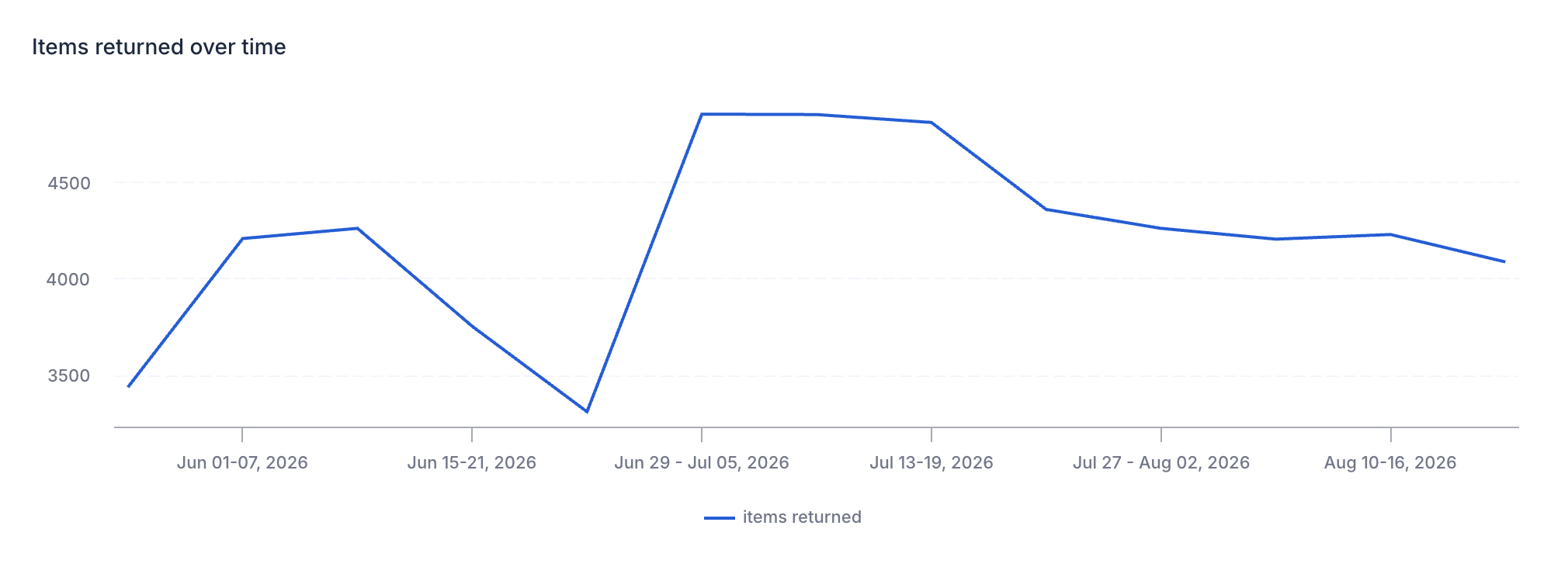
Items Returned Over Time
This line chart allows you to track return volume fluctuations, broken down per week. Use this chart to determine if your current return volume is following expected patterns or if a recent marketing campaign or product launch has caused an unexpected spike in returns.
Return Reasons
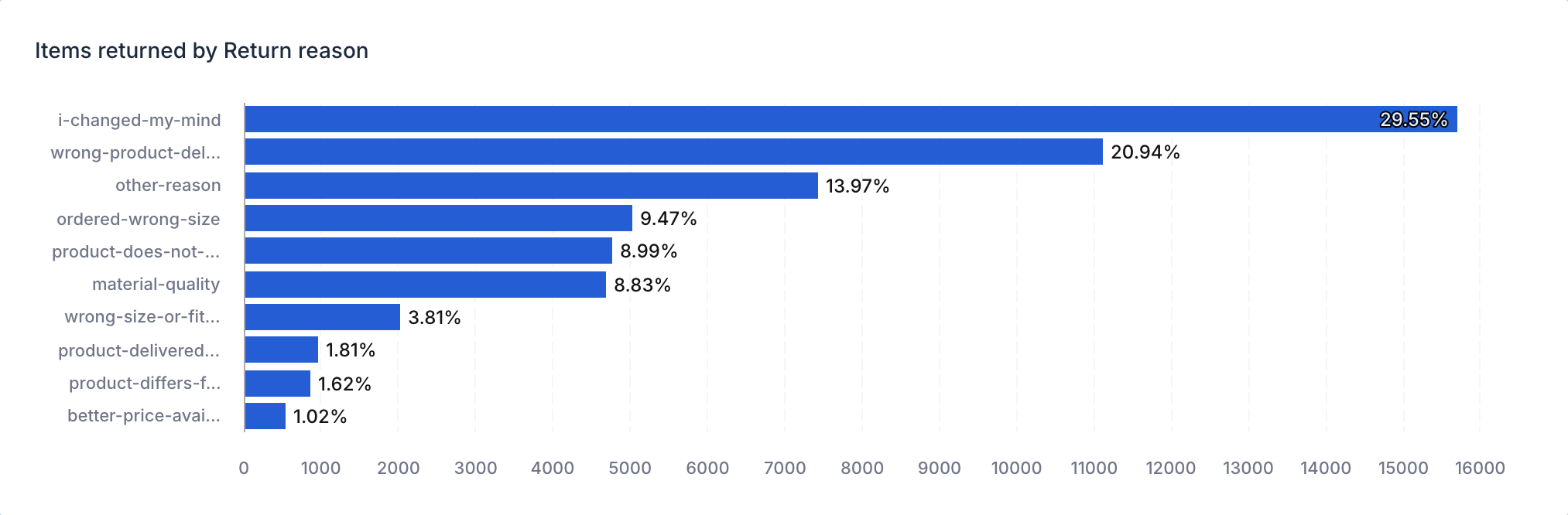
This bar chart categorizes why customers are returning products, shown as a percentage of total items returned.
- Hover over any segment to see the exact count and percentage for that specific reason (e.g., "ordered-wrong-product").
- Drill-through: You can right-click a reason and select "Return questions" to see the specific qualitative feedback (open text answers) provided by customers for that category.
Top 25 Products by Quantity
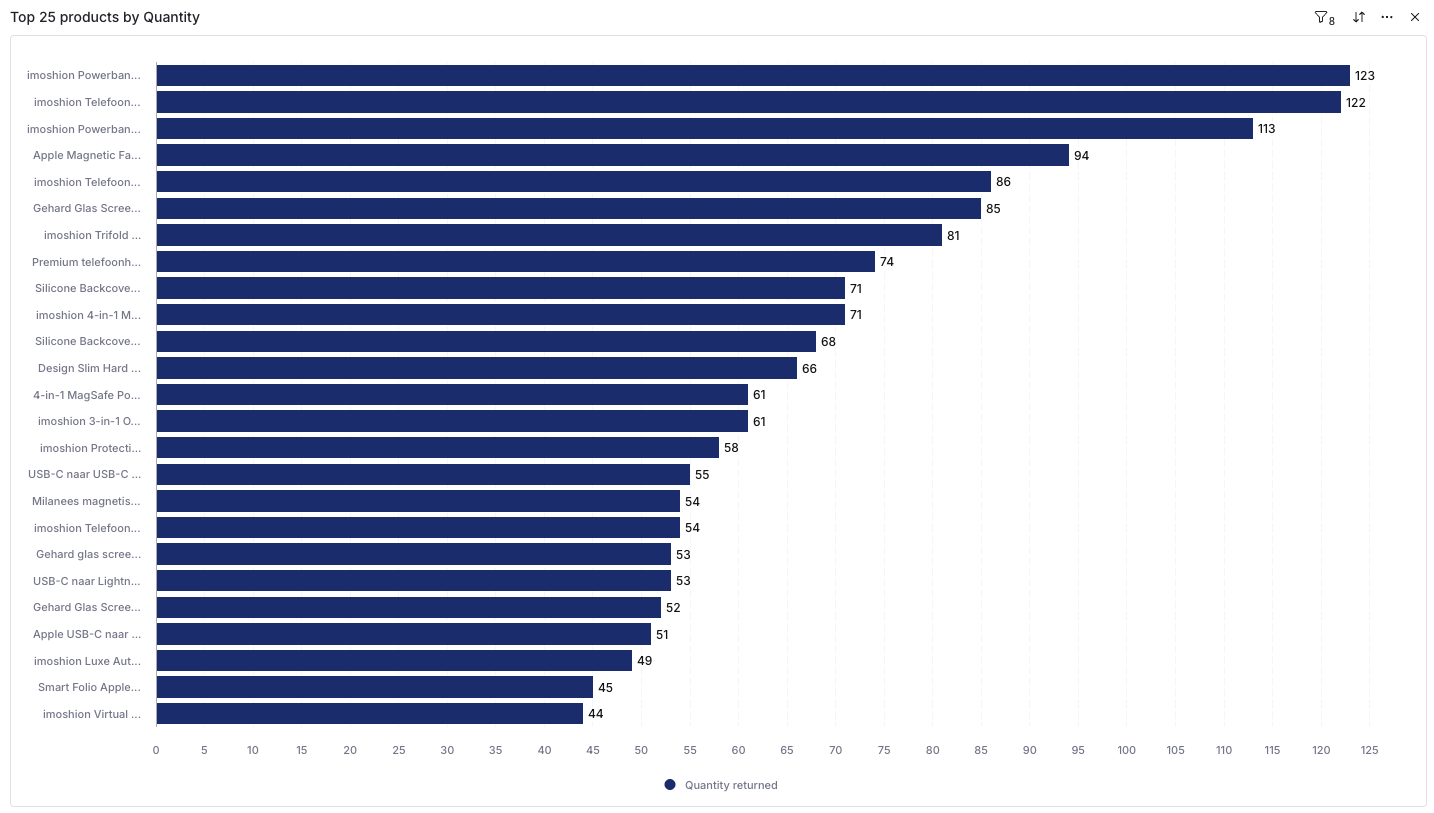
This bar chart shows your 25 most-returned products, ranked by the number of units returned. Use this to spot "problem" products that may have sizing issues, poor descriptions, or quality defects.
Top 25 Products by Value
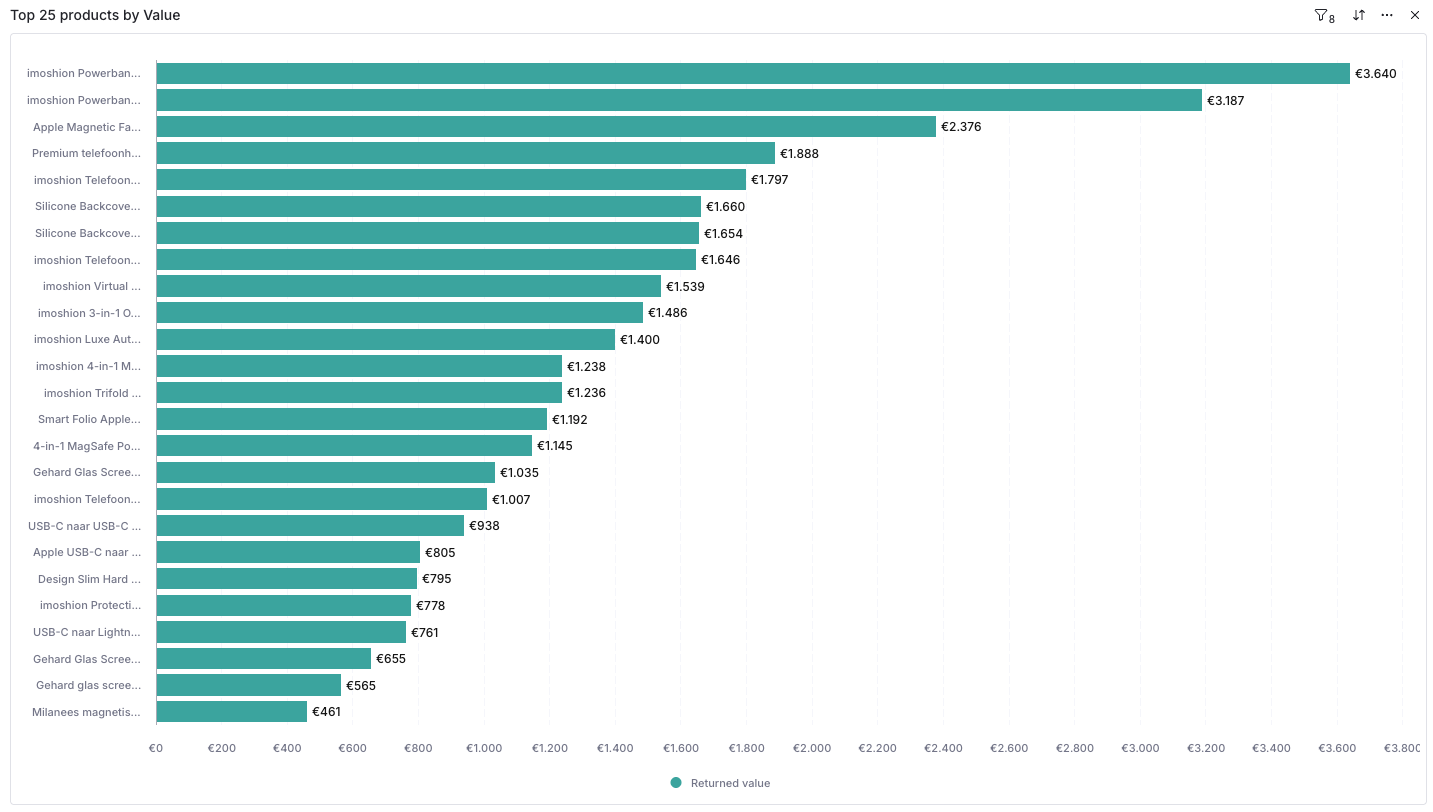
This bar chart shows your 25 most-returned products, ranked by the monetary value of returned items. A product can rank highly here even with a modest return count if it has a high unit price, so it's worth reviewing this list alongside the Quantity ranking above.
Return Order Items Data Table
The bottom of the report contains a granular, line-by-line list of every returned item. This table includes:
- Created: Date the return was initiated.
- Return order: The unique return ID.
- Product: The name of the returned item.
- SKU: The identifying stock code of the item.
- Return reason: The customer's selected reason for the return.
- Quantity Received: The number of units of this item physically received back at the warehouse.
- Returned Value: The monetary value of the returned item.
Filtering using the Controls Sidebar
On the right-hand sidebar, use the Controls panel to narrow down your data. You can filter by:
- Date range: (e.g., last 30, 60, or 90 days).
- Product/SKU: Look up data for a specific item.
- Return Reason: View data only for specific issues like "damaged" or "wrong size."
Exporting Reports
If you need to share this data with your team or perform an external audit, you can export the data in several ways:
- Global Export: Click the Export button at the top right of the page to download the entire dashboard as a PDF, PNG, or Excel file.
- Widget Export: Hover over a specific chart (like Top 10 Products) and click the "three dots" icon to export just that specific data set as a CSV (Raw or Formatted) or image file (SVG, JPEG, PNG).