Team members
Invite an unlimited number of colleagues to your Returnless account and work together to process returns faster and more efficiently.
In this article:
Invite Team Members
To invite new team members to your account, follow these steps:
- Log in to your Returnless panel
- Navigate to Team members.
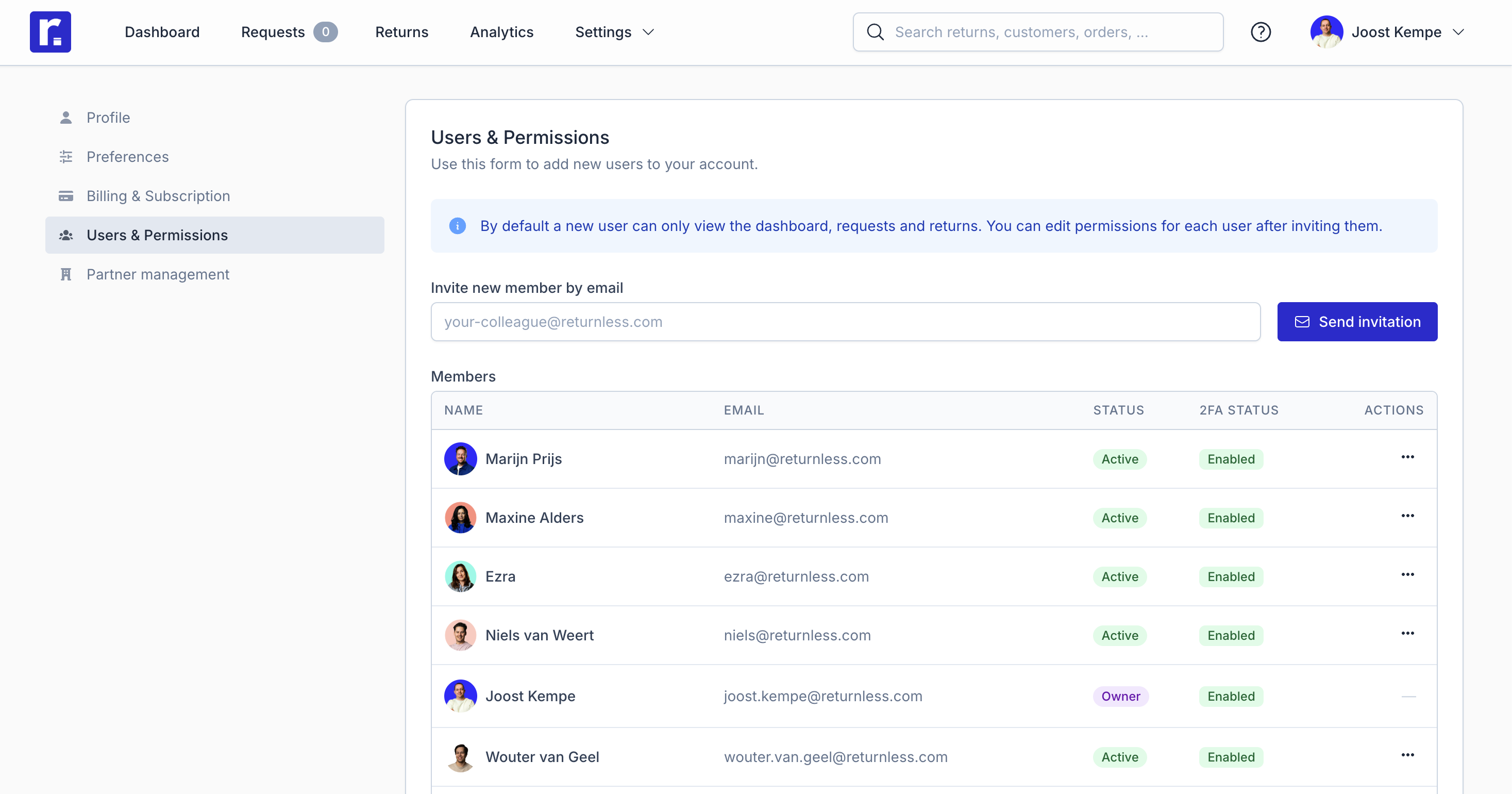
- Enter the email address of the colleague you want to invite.
- Click Send invitation. The invited team member will receive an email where they can accept or decline the invitation.
Specify Permissions
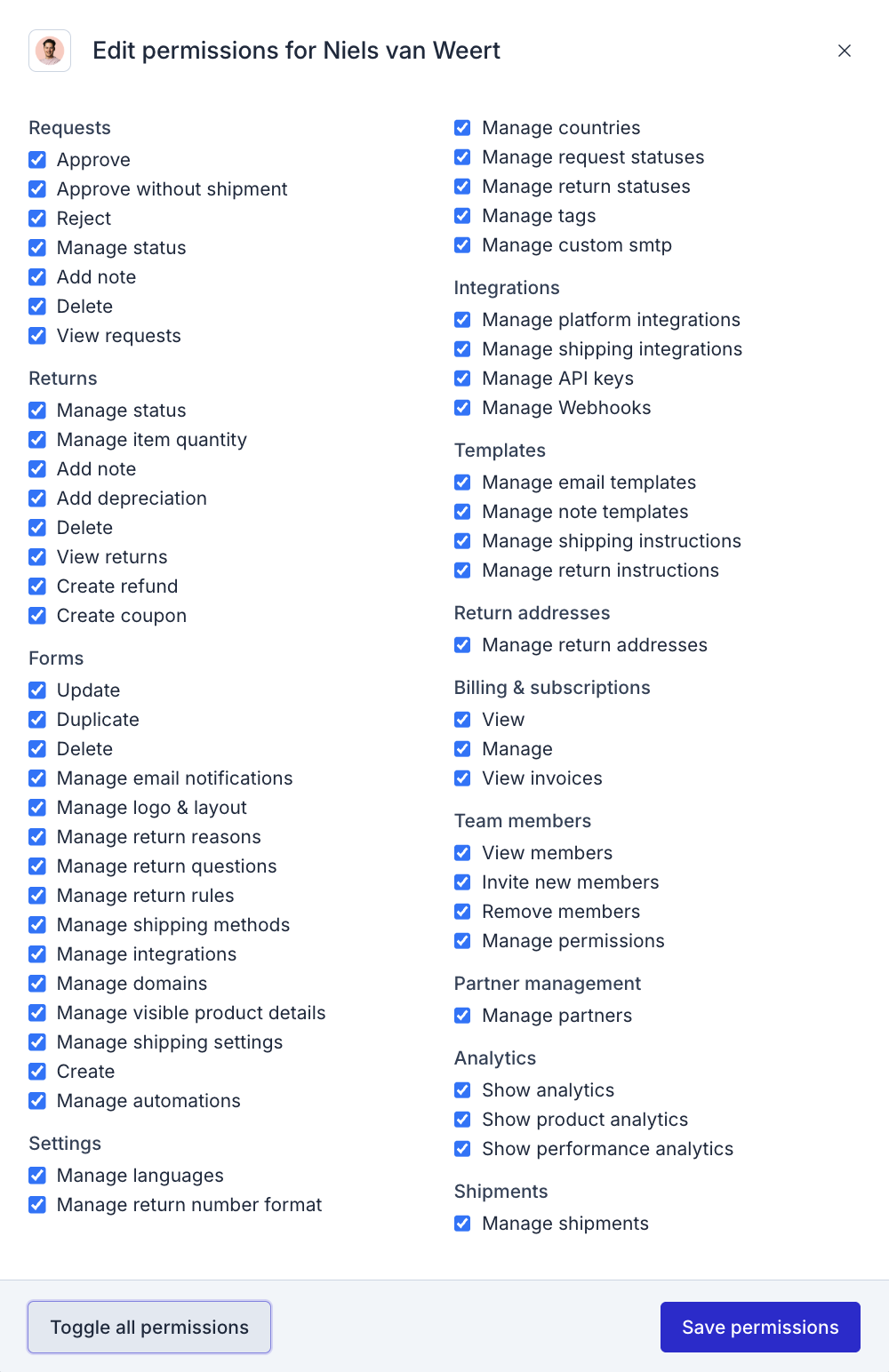
You can assign or update permissions for each team member individually.
To change permissions:
- Log in to your Returnless panel
- Go to Team members.
- In the members table, find the relevant team member and click Edit permissions.
- Check the boxes for all permissions you want to grant. If a permission is unchecked, the team member will not have access to that action.
Available Permissions
Remove Team Members
To remove a team member from your Returnless account:
- Log in to your Returnless panel
- Navigate to Team members.
- Locate the team member in the list and click Remove.
- Confirm the removal. The team member will receive an email notifying them that their account has been removed.
Transfer Ownership
Only the current owner of the account can transfer ownership.
Please note: after transferring ownership, only the new owner can initiate another ownership transfer.
To transfer ownership:
- Log in to your Returnless panel
- Navigate to Team members.
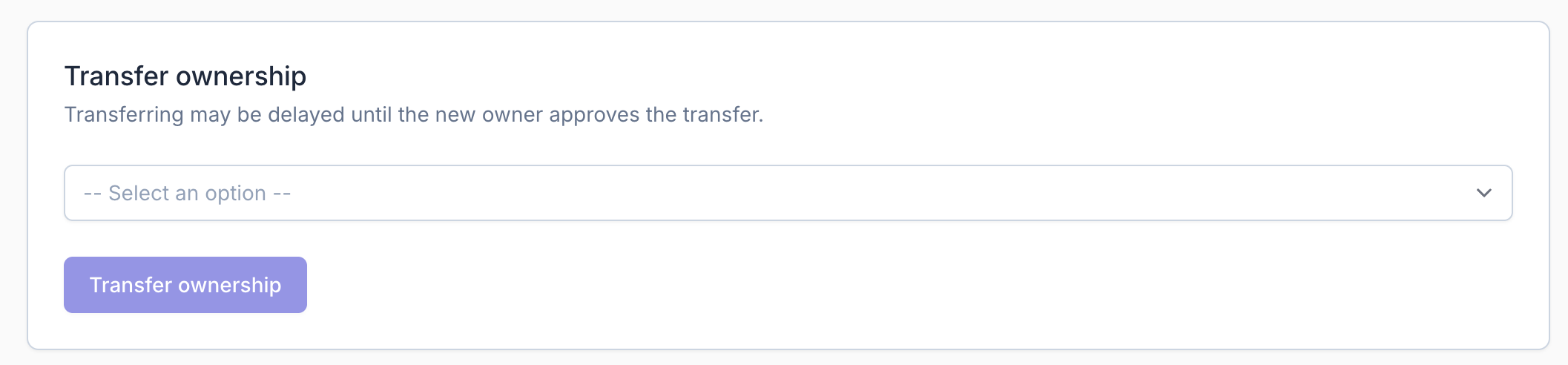
- In the Transfer ownership section, select the user you want to assign ownership to.
- Click Transfer ownership. The selected team member will receive an email inviting them to accept ownership. Once accepted, they will become the new owner of the account.