Browsing return orders
The return order grid is your main hub for viewing and managing all return orders in your Returnless dashboard. From here, you can track return progress, review important details, and quickly navigate to any specific return.
In this article:
- Accessing the return grid
- Browsing return orders
- Pagination
- Columns
- Filtering returns
- Saved filters
- Managing saved filters
- Bulk actions
Accessing the return grid
- Log in to your Returnless panel.
- Navigate to:
Browsing return orders
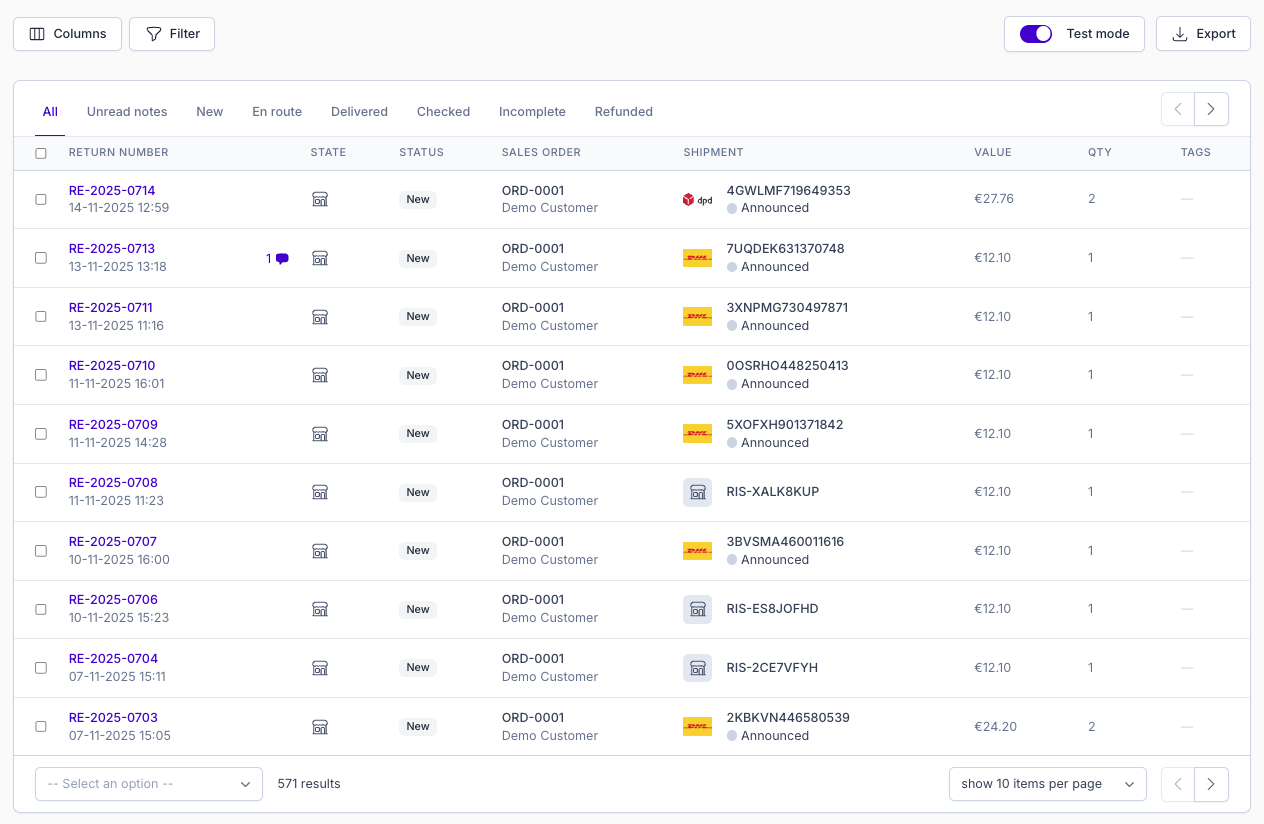
The return grid lists all your returns, displaying key information such as Status, Carrier, and Value.
Returns are automatically sorted by most recent first.
To view the full details of a return, simply click the return number. You’ll be taken to a dedicated page with all related information.
Pagination
You can navigate between pages using the arrows in the top-right or bottom-right of the grid.
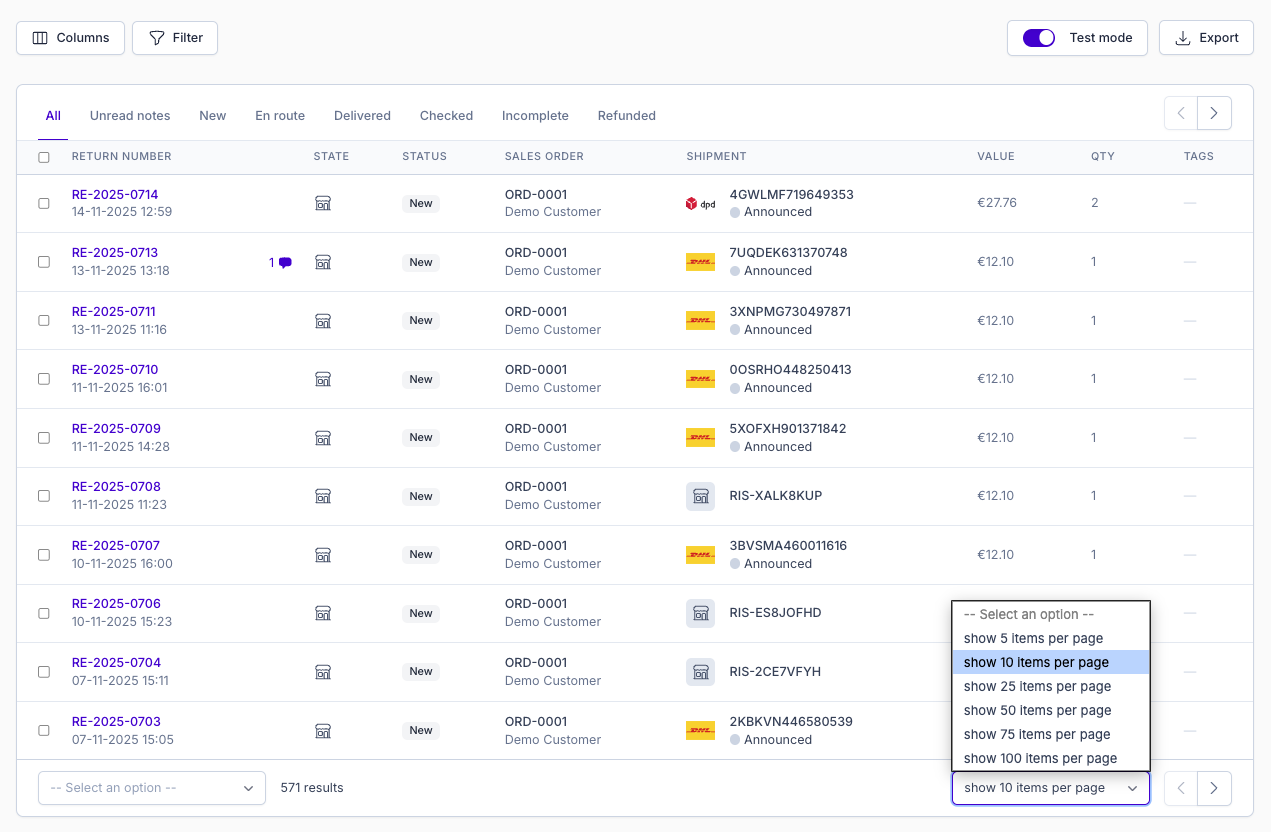
By default, each page shows 25 results. To change this:
- Click Show 25 items per page at the bottom right.
- Select your preferred page size.
Columns
Sorting
You can sort returns by any available column. Just click on the column header to reorder the list.
Customizing visible columns
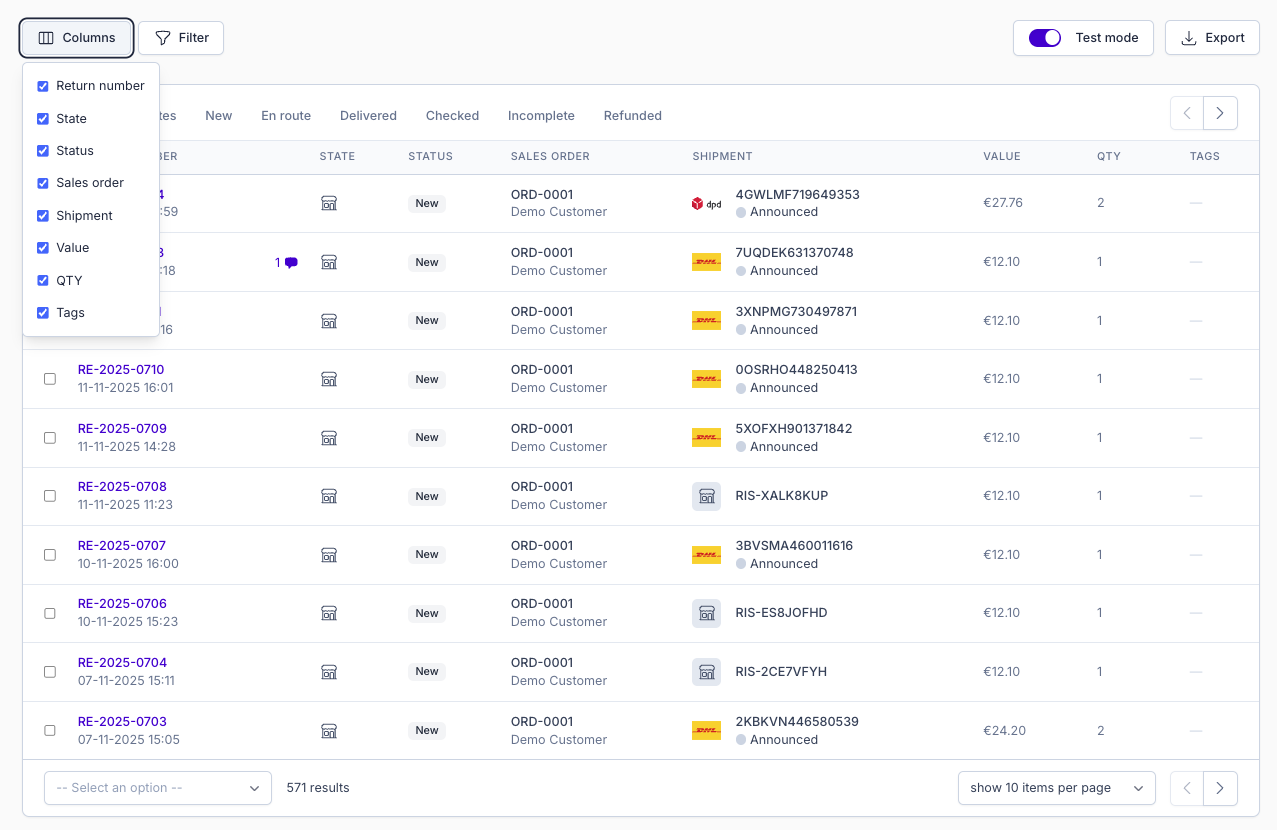
You can choose which information is displayed in the grid:
- Click Columns at the top-left of the grid.
- Use the checkboxes to show or hide specific fields.
Filtering returns
Use the Filter menu (top-left of the grid) to search and narrow down your returns.

You can apply filters to the following parameters:
| Parameter | Description |
|---|---|
| Created from | Returns created after this date |
| Created to | Returns created before this date |
| Value from | Returns with a value equal or higher |
| Value to | Returns with a value equal or lower |
| QTY from | Returns with a quantity equal or higher |
| QTY to | Returns with a quantity equal or lower |
| Integration | Returns from orders created through a specific integration |
| Language | Returns submitted in this language |
| Form | Returns created via this return form |
| Return Status | Returns internally currently in this status |
| State | Returns currently in this status |
| Shipping Status | Returns in a specific stage of the carrier tracking process |
| Notes | Returns with notes marked as read or unread |
| Failed Automations | Returns that contain failed automations |
| Tags | Returns that contain this tag |
| Customers | Returns including certain Name, Email or Customer ID |
Saved filters
You can save any set of filter parameters for quick reuse:
- Apply your desired filters.
- Click Save current filter.
- Give your filter a name.
Your saved filters will appear at the top of the grid. Click a saved filter to instantly apply it.
To view all returns again, select All.

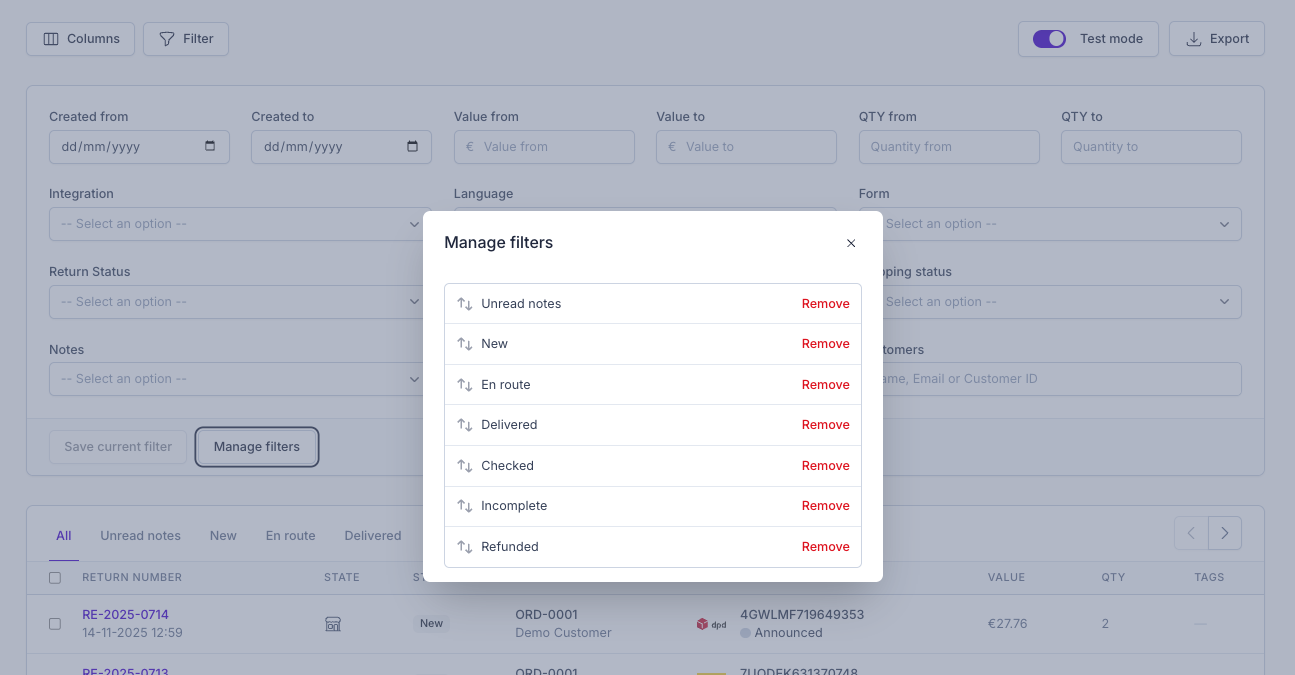
Managing saved filters
To edit or delete saved filters:
- Click Manage filters.
- A popup will appear with your saved filters.
- Click Remove next to any filter you want to delete.
Bulk actions
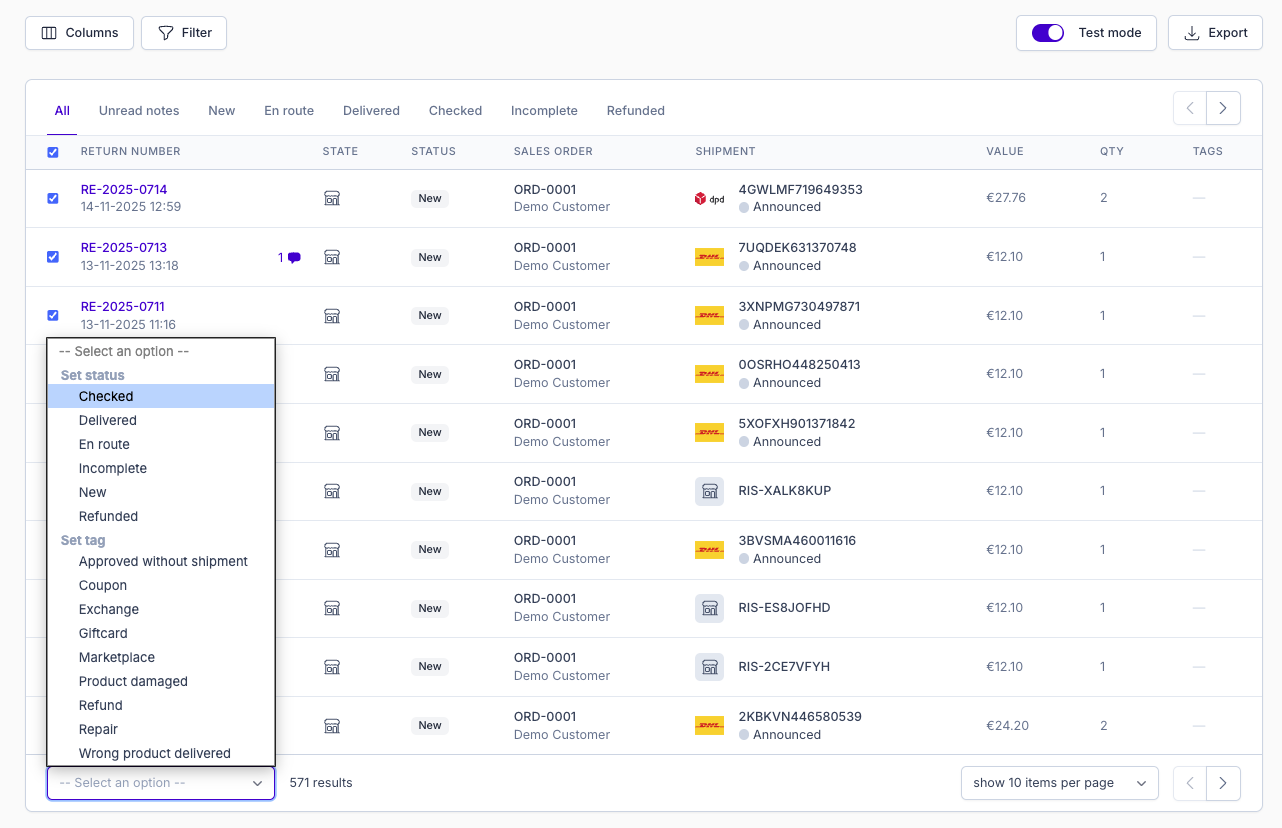
You can perform actions on multiple returns at once:
- Select one or more returns using their checkboxes.
- Click Action at the bottom-left of the grid.
- Choose the action you want to apply (e.g., update status).
Bulk actions are especially useful when you need to update several returns at the same time.