Email notifications
Keeping customers informed throughout the return process helps reduce questions and unnecessary contact moments with your customer service team. Returnless provides a complete set of transactional emails that automatically update customers at key stages of their return.
In this article:
Transactional emails overview
| Email notification | Description |
|---|---|
| Note created | Sent when a new note is added to a return or request. |
| Payment request created | Sent when a payment request is created and the customer must complete payment before continuing the return. |
| Request approved | Sent when the webshop approves a request. The customer can now continue and create the return. |
| Request approved without shipment | Sent when a request is approved and no shipment is needed. The customer is informed that the return will be processed without sending back the item. |
| Request approved with manual shipment | Sent when a request is approved but requires a manually arranged shipment instead of a generated label. |
| Request created | Sent when a return request is submitted and requires approval before proceeding. |
| Request rejected | Sent when a request is rejected. The customer is informed that the return cannot be created. |
| Return coupon created | Sent when the webshop creates a coupon in the Returnless panel. The email includes the coupon code and a link to redeem it. |
| Return created | Sent as soon as a return is created. Includes a link to the return status page. |
| Return delivered | Sent when the carrier or webshop marks the return shipment as delivered. |
|
Return finalized (Marketplaces only) |
Sent when the return is completely processed and marked as finalized for the Marketplace. |
| Return gift card created | Sent when the webshop issues a gift card as the return resolution. |
| Return order refunded | Sent when a refund is processed in the Returnless panel. |
| Shipment shipped | Sent when a shipment has been dispatched to the customer (usually used for exchanges or replacement items). |
| Return resolved | Sent when the return is marked as resolved in the Returnless panel. |
Enabling or disabling email notifications
You can enable or disable each email type per return form. Follow these steps:
- Log in to your Returnless panel and go to Settings > Return forms.
- Select the return form you want to adjust and click Settings.
- In the General tab, scroll to the Email notifications section.
- Use the toggles to enable or disable specific emails for that form.

Customizing email templates
You can customize your email templates to match your brand’s tone of voice and return process.
To update an email template:
-
Log in to your Returnless panel and go to Settings > Templates.
Open the Email templates tab and select the template you want to edit.
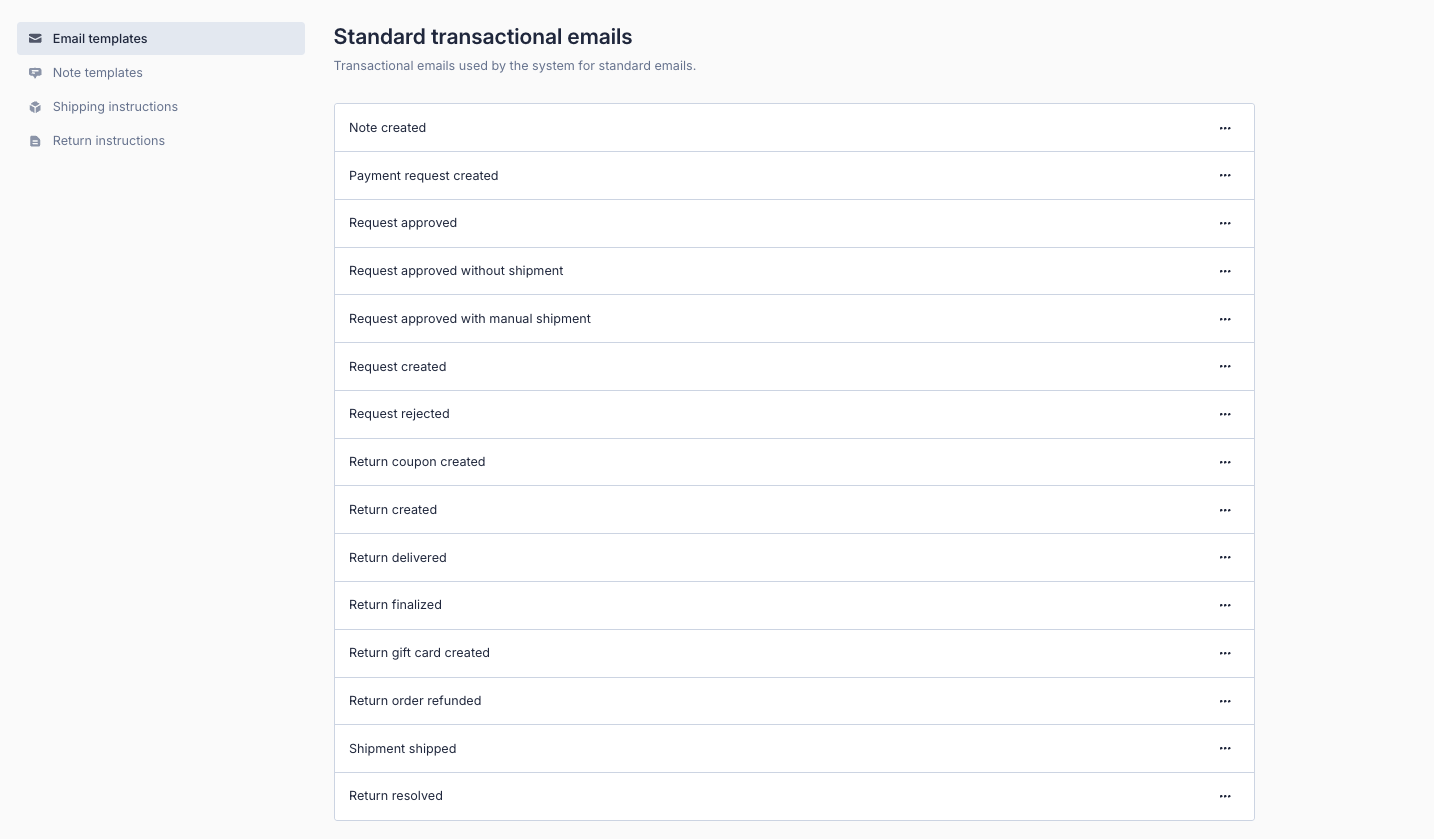
You will see a list of all enabled languages and the current content of the template.
- Edit the subject and message body.
- Add email variables where needed.
- Click Save to apply your changes.
Your updated template will be used for all future emails.
