Shipping instructions
Shipping instructions allow you to communicate clear, step-by-step guidance to your customers when they are preparing to return products to your shop. By customizing these instructions, you ensure customers know exactly how to ship their return using your contracted carriers—leading to fewer errors and a smoother return experience.
In this article:
- Accessing Shipping Instructions
- Creating a New Shipping Instruction
- Editing an Existing Shipping Instruction
- Deleting a Shipping Instruction
- Activating a Shipping Instruction on a Shipping Method
Accessing Shipping Instructions
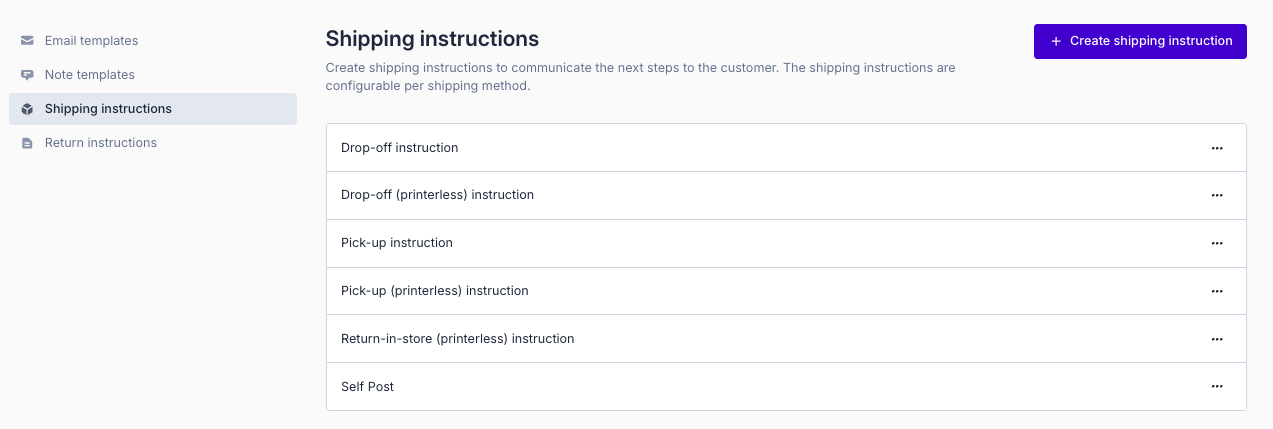
To view or manage your shipping instruction templates:
- Log in to your Returnless panel.
- Navigate to Settings > Templates.
- Select the Shipping Templates tab.
Creating a New Shipping Instruction
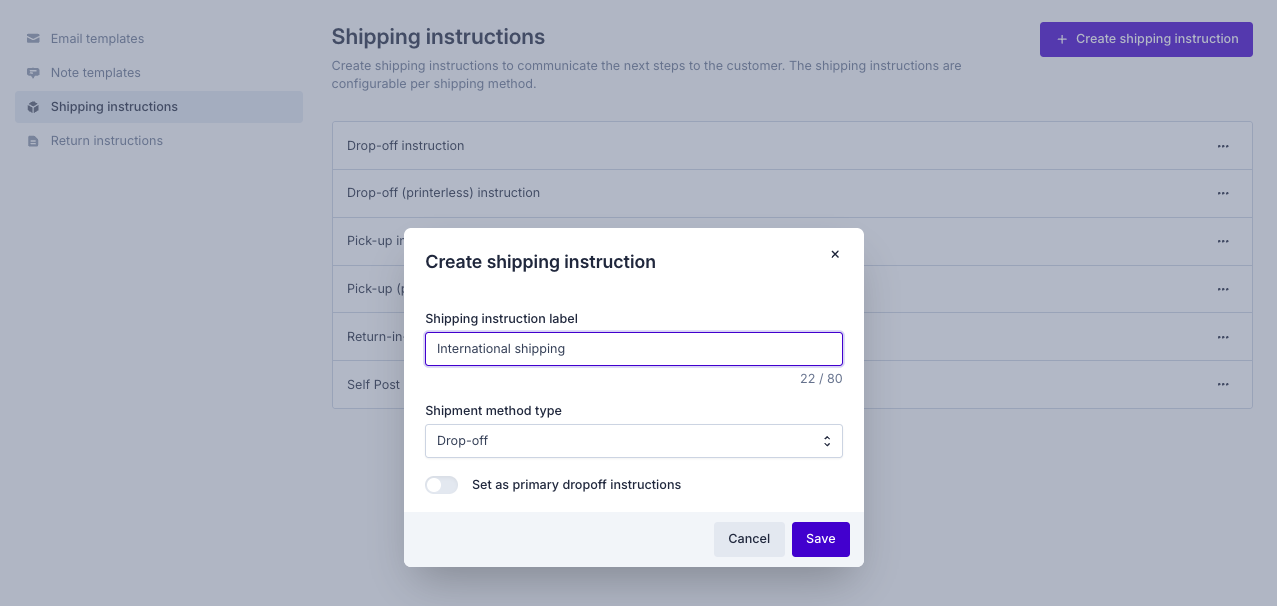
- In the Shipping Templates tab, click Create shipping instruction.
- Enter the details of your new instruction:
- Internal name – for internal reference.
-
Shipping type – choose the type of shipment this instruction applies to.
(Optional) Set the instruction as Primary for the selected shipping type.
- The primary instruction becomes the default for that type.
- Note: This field cannot be changed after creation.
- Click Save.
Once created, you can enter the instruction text for every language activated in your Returnless account.
Available Shipping Types
| Type | Description |
|---|---|
| Drop-off | Customer drops off the package at a designated location. |
| Drop-off (printerless) | Customer drops off the package without needing to print a label. |
| Pickup | Carrier picks up the package at the customer’s address. |
| Pickup (printerless) | Carrier picks up the package without requiring the customer to print a label. |
| Return-in-store (printerless) | Customer returns the product at a designated store location. |
| Other | Any other shipment type. |
Editing an Existing Shipping Instruction
- Go to Settings > Templates.
- Open the Shipping Templates tab.
- Select the shipping instruction you want to edit.
- Update the content for each available language.
- Click Save to apply your changes.
Deleting a Shipping Instruction
- Go to Settings > Templates.
- Open the Shipping Templates tab.
- Select the instruction you want to delete.
- Click Remove, then confirm the deletion in the modal.
Activating a Shipping Instruction on a Shipping Method
To apply a shipping instruction to a specific shipping method:
- Go to Settings > Return Forms.
- Select the return form you want to update and click Settings.
-
Open the Shipping Method tab.
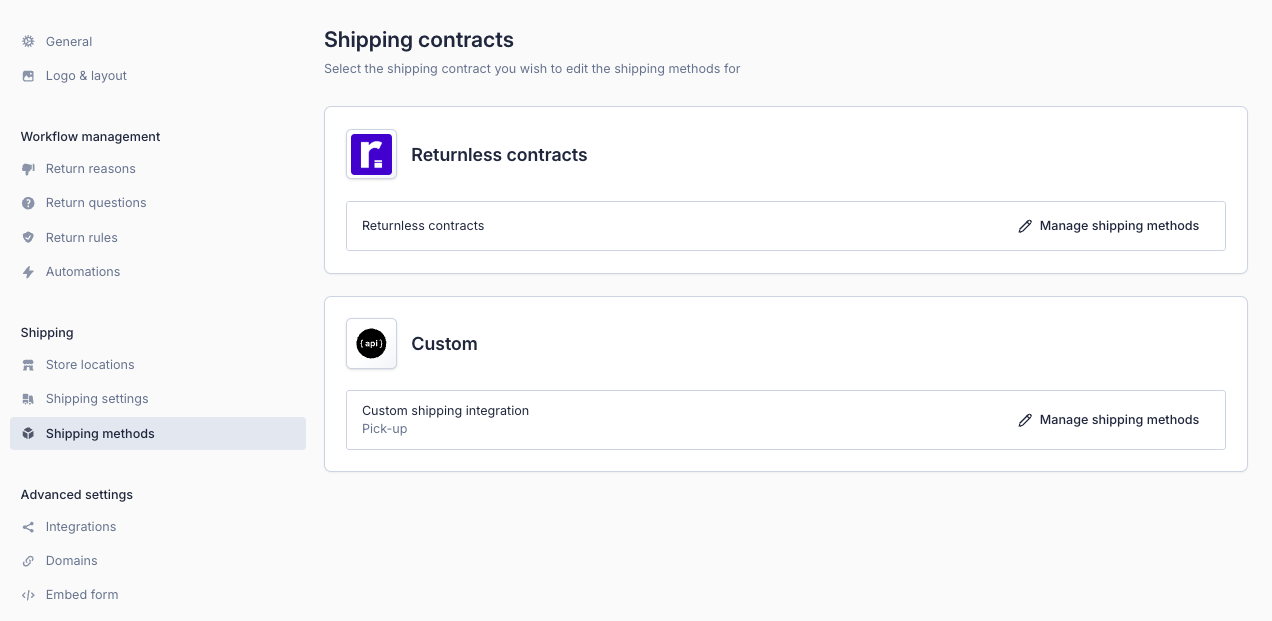
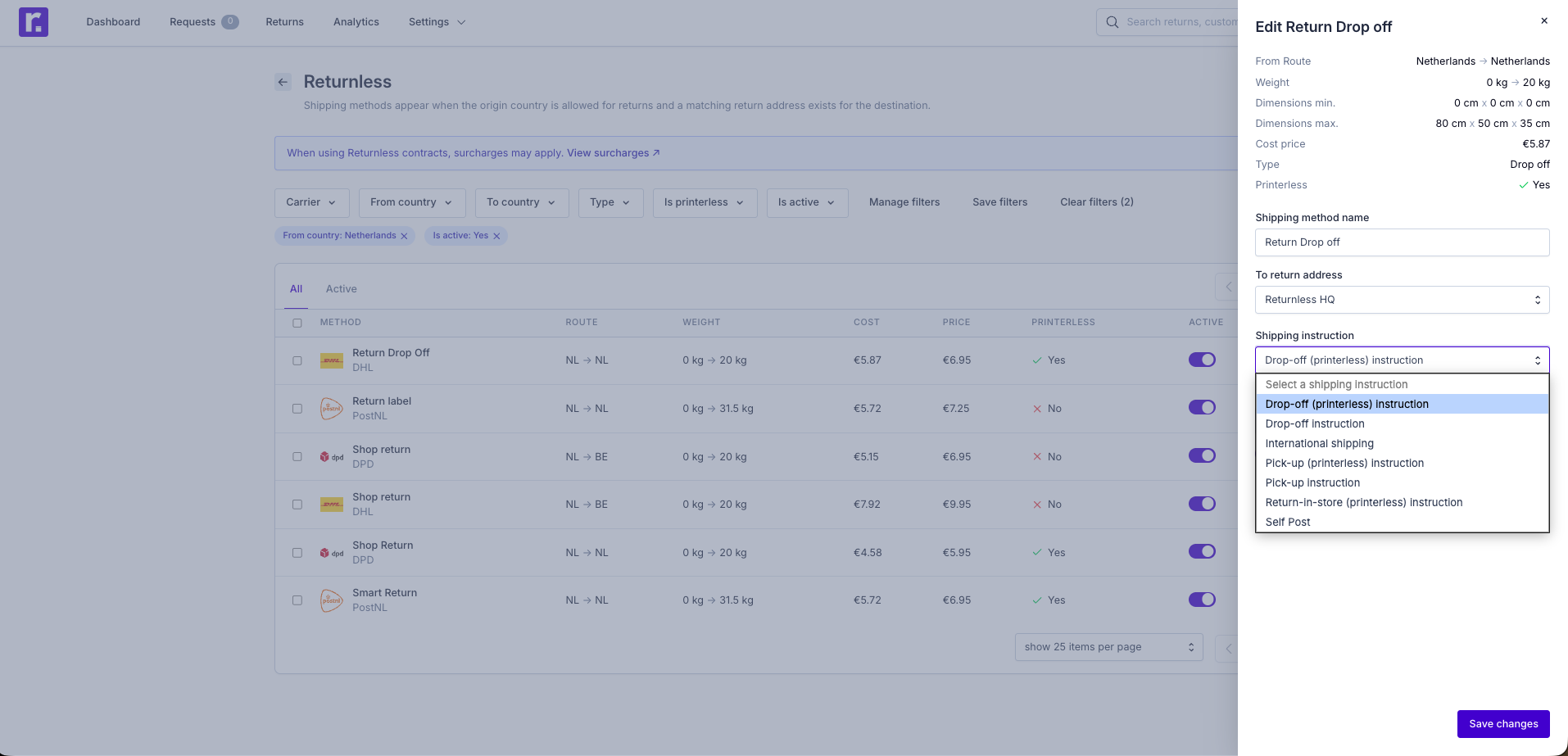
- Select the shipping method you want to configure. (Note: the instruction must match the method’s shipping type).
- Use the Shipping instruction dropdown to choose the instruction you want to apply.
-
Click Save changes.