Logo & layout
The Logo & Layout page allows you to customize the visual appearance of your Returnless return forms. From titles and labels to logos and cover images, this section helps you align your return experience with your brand identity.
In this article:
Accessing the Logo & Layout Settings
To open the Logo & Layout settings:
- Log in to your Returnless panel.
- Navigate to the Return forms menu.
- Open the return form you want to edit.
- Click the Logo & Layout tab.
A preview of the form is always available at the bottom of the page so you can review your changes instantly.

Languages
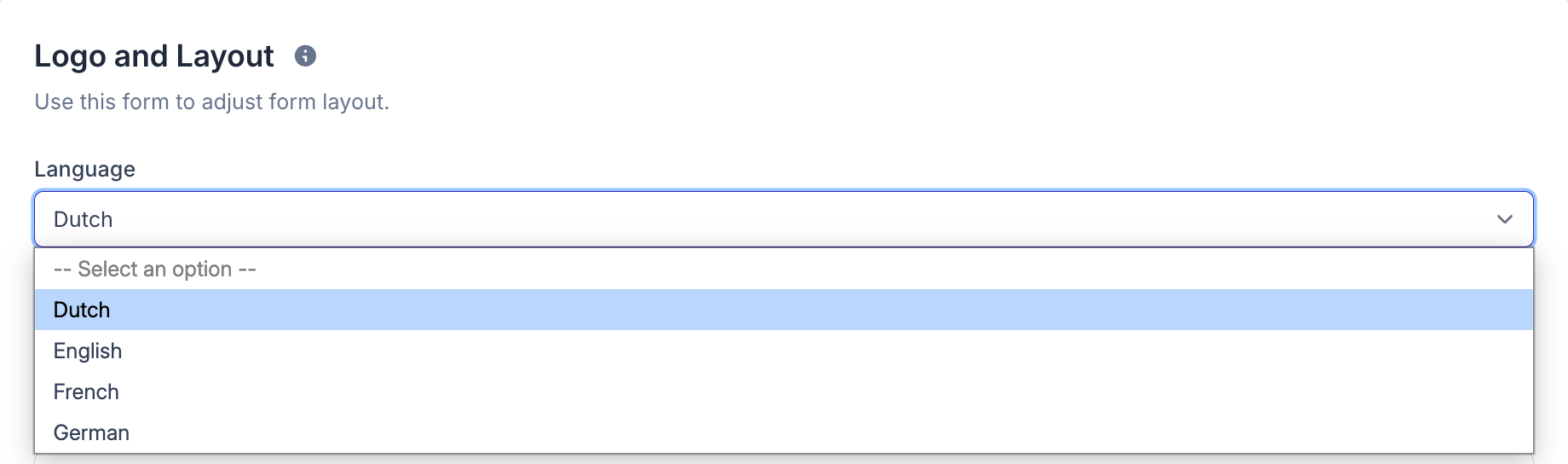
Returnless supports multilingual return forms. You can customize the appearance for every language that is activated in your Returnless panel.
To add or remove languages, or to change the default language, go to General settings.
Customizable Parameters
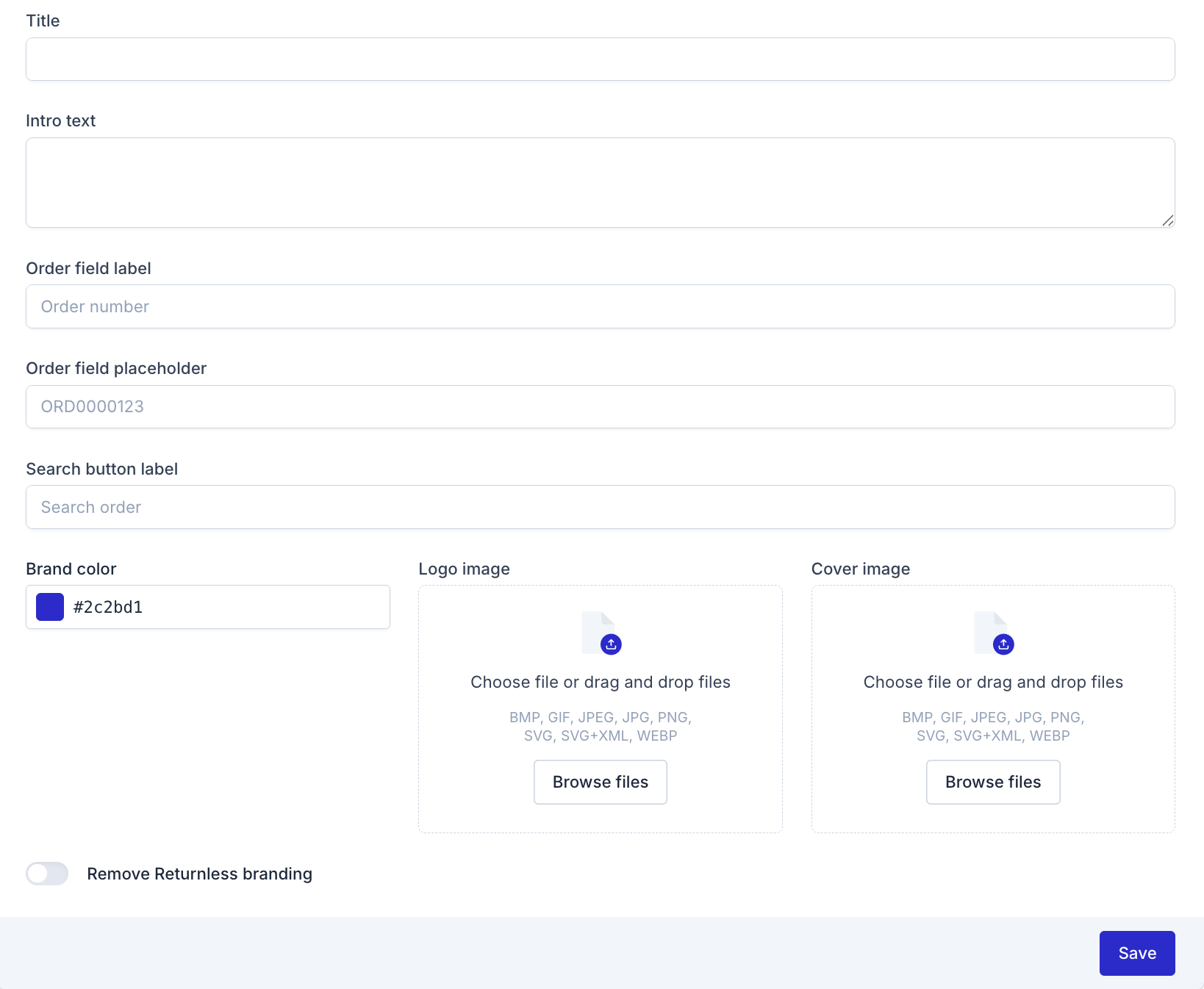
You can tailor the content and branding of your return form using the options below:
| Parameter | Description | Example |
|---|---|---|
| Title | The main title displayed on the return form. | Travelshop Return Form |
| Intro text | A short introduction shown at the top of the form. | Use this form to easily create a return |
| Order field label | Label above the order number field. Typically matches the identifier customers are asked to enter. | Order number |
| Order field placeholder | Placeholder text inside the order number field. We recommend reflecting the typical order number format. | ORD000000 |
| Search button label | Text displayed on the button used to search for the order. | Search order |
| Logo image | The logo shown above the form and used in transactional emails. | — |
| Cover image | The image displayed on the right side of the return form. | — |
Per-Language Branding
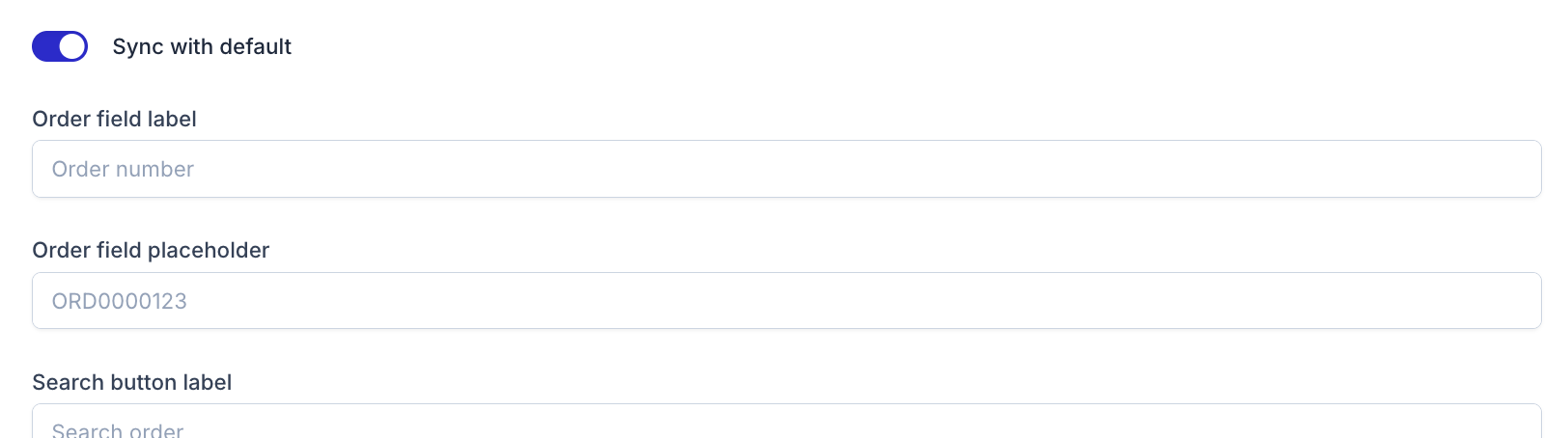
By default, all branding settings are synced with your default language. If you want to customize the branding for each language individually:
- Disable the Sync with default toggle.
- Adjust colors, logos, and cover images per language as needed.
This allows your return form to feel native and consistent for every customer, regardless of their language.