Automations
Automations allow you to automatically trigger actions during the return process. They help streamline your workflow, reduce manual work, and ensure consistency in how returns are handled.
In this article:
- Accessing Automations
- Adding a New Automation
- Triggers
- Conditions (Optional)
- Actions
- Re-runnable Automations
- Failed Automations
Accessing Automations
To view and manage automations:
- Open the Return panel.
- Navigate to Settings > Return forms > open the settings of your form
- Select the Automations tab.
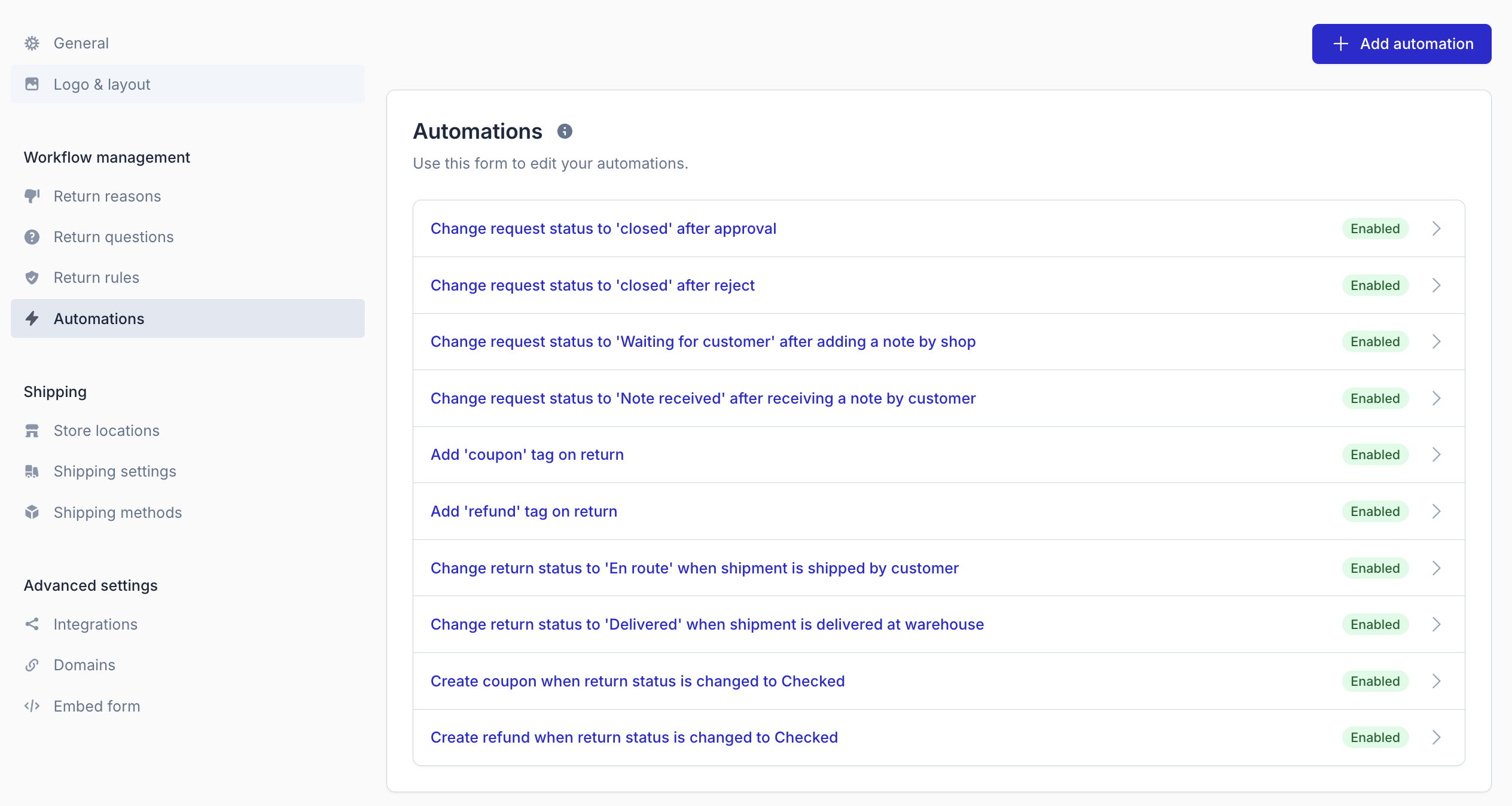
Adding a New Automation
- Click Add automation.
- The automation configuration screen will open, allowing you to set triggers, conditions, and actions.
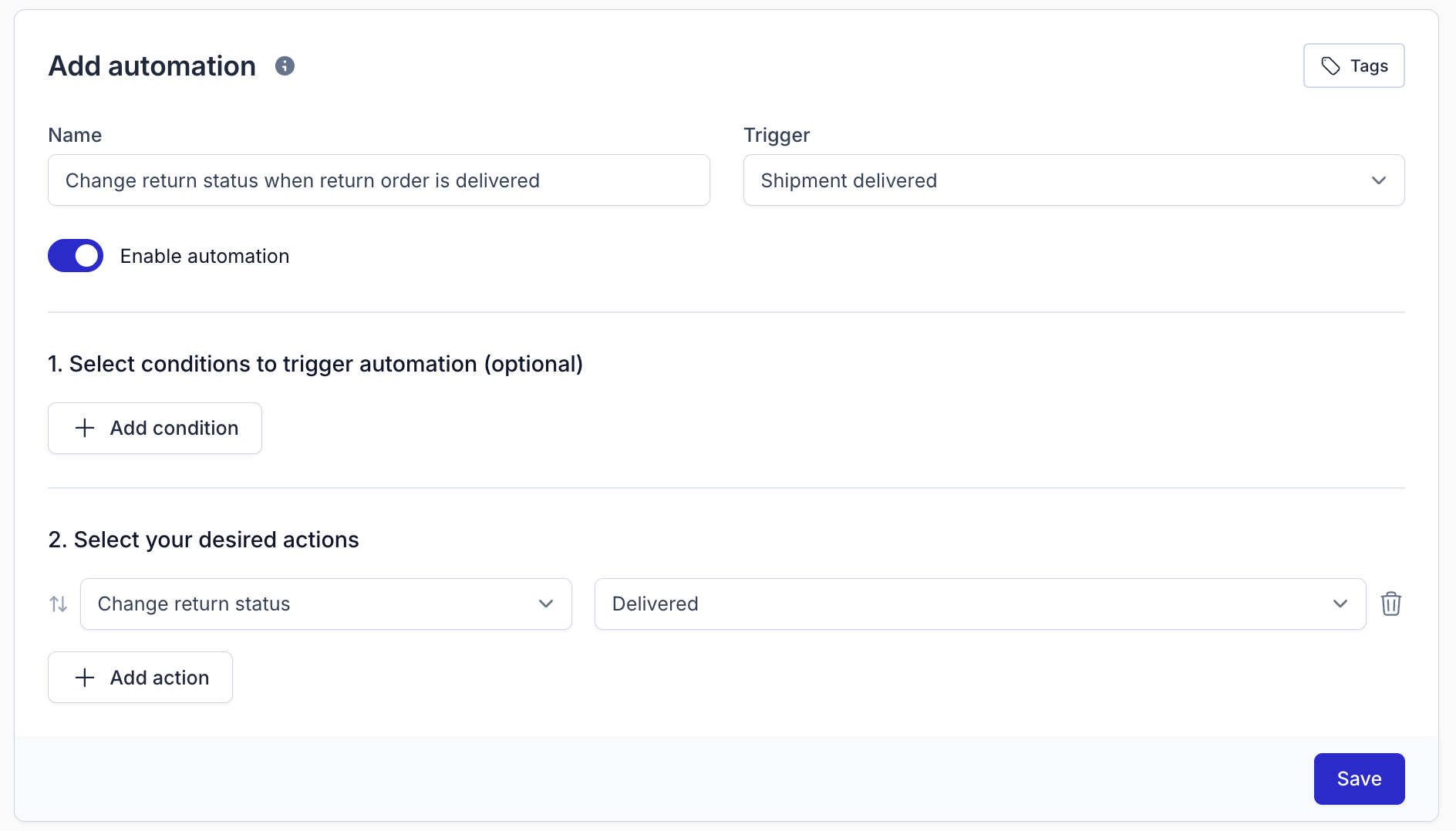
Automations consist of three components:
- Trigger – When the automation should start.
- Condition (optional) – Requirements that must be met.
- Action – What the automation should do.
Triggers
Your automation starts when one of the following events happens:
| Trigger | When it is executed |
|---|---|
| Depreciation created | When a depreciation calculation is created. |
| Request approved | When a return request is approved. |
| Request created | When a new return request is submitted. |
| Note added to request | When a note is added to the request. |
| Request rejected | When a return request is rejected. |
| Request status changed | When the request status changes. |
| Tag added to request | When a tag is added to the request. |
| Return created | When a return is created. |
| Return finalized | When the return is marked as finalized. |
| Return fully received | When all return items are marked as received. |
| Note added to return | When a note is added to the return. |
| Return status changed | When the return status changes. |
| Tag added to return | When a tag is added to the return. |
| Shipment created | When a shipment is created. |
| Shipment delivered | When a shipment is delivered. |
| Shipment shipped | When a shipment is handed to the carrier. |
Delay
You can add a delay to any trigger. This means the automation doesn't run straight away, but waits for the amount of time you set before doing anything.
- The conditions are checked at the moment the automation actually runs — so after the delay, not when the trigger first fired.
- When you create or change a delayed automation, Returnless will also apply it to returns that already exist — you don't have to wait for new returns to come in.
- Automations can be both re-runnable and delayed, but that combination can get complex so use this with caution.
Note: We're still collecting historical data, so how far back this goes may be limited for automations you set up right now.
Conditions (Optional)
You can enhance your automation with one or multiple conditions.
The automation will only run when all selected conditions match.
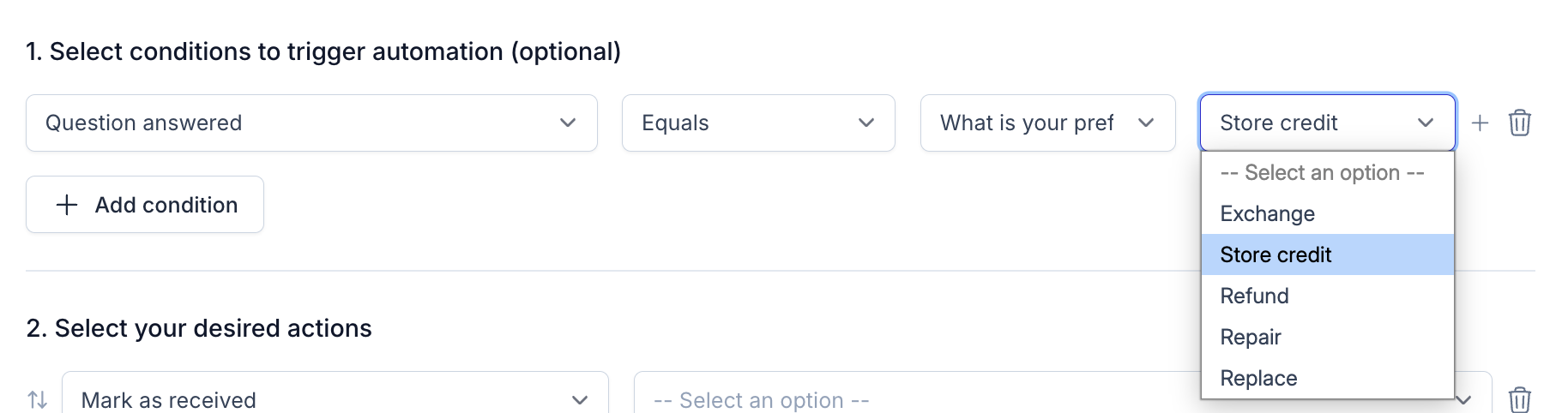
Available Conditions
| Parameter | Type | Description |
|---|---|---|
| Amount of customer returns | Number | Number of customer returns is lower/equal/higher than a set number. |
| Amount of items | Number | Number of items in a return/request is lower/equal/higher than set number. |
| Cost price | Price | Cost price of the return is lower/equal/higher than desired price. |
| Customer country | Country | Customer country matches/does not match the selected country. |
| Delivery age (days) | Number | Number of days since delivery is lower/equal/higher than set number. |
| Delivery date | Date | Delivery date is before/on/after a given date. |
| Fulfilment age (days) | Number | Number of days since fulfilment is lower/equal/higher than set number. |
| Fulfilment date | Date | Fulfilment date is before/on/after a given date. |
| Order age (days) | Number | Number of days since order is lower/equal/higher than set number. |
| Order date | Date | Order date is before/on/after a given date. |
| Product SKU | Text | SKU is equal/different or includes the desired text. |
| Product brand | Text | Product brand is equal/different or includes the desired text. |
| Product category | Text | Product category is equal/different or includes the desired text. |
| Product discount amount | Number | Product discount amount is lower/equal/higher than desired amount. |
| Product discount percentage | Number | Product discount percentage is lower/equal/higher than desired amount. |
| Product name | Text | Product name is equal/different or includes the desired text. |
| Product price | Price | Product price is lower/equal/higher than desired price. |
| Product supplier | Text | Product supplier is equal/different or includes the desired text. |
| Quantity returned | Number | Quantity returned is lower/equal/higher than desired amount. |
| Quantity sold | Number | Quantity sold is lower/equal/higher than desired amount. |
| Question answered | Return question | Automation triggers only when a specific return-question answer matches. |
| Request status | Status | Request status equals/differs from selected status. |
| Return order value | Price | The total return value is lower/equal/higher than desired amount. |
| Return reason | Text | Return reason equals/differs from or includes the selected text. |
| Return status | Status | Return status equals/differs from selected status. |
| Returned age (days) | Number | Days since return was handed over is lower/equal/higher than set number. |
| Returned date | Date | Returned date is before/on/after a given date. |
| Sales order discount amount | Price | Discount applied on the sales order is lower/equal/higher than selected amount. |
| Sales order discount code | Text | Discount code equals/differs from or includes the desired text. |
| Sales order discount description | Text | Discount description equals/differs from or includes the selected text. |
| Sales order discount percentage | Number | Discount percentage on the sales order is lower/equal/higher than selected amount. |
| Sales order metadata | Text, Number, Date | Metadata key must contain a certain value based on your rule. |
| Sales order number | Text | Sales order number is equal/different or includes the desired text. |
| Sales order payment method | Text | Sales order payment method is equal/different or includes the desired text. |
| Sales order returned discount amount | Price | Discount applied to the returned portion is lower/equal/higher than desired amount. |
| Sales order returned discount percentage | Number | Returned discount percentage is lower/equal/higher than desired amount. |
| Sales order shipping method | Text | Shipping method is equal/different or includes the desired text. |
| Sales order status | Text | Sales order status is equal/different or includes the desired text. |
| Sales order value | Price | Total order value is lower/equal/higher than desired amount. |
| Tags | Tag | Request or return must include / not include a specific tag. |
| Total weight of returned items | Number | Total weight of returned items is lower/equal/higher than desired weight. |
| Tracking number | Text | Tracking number equals/does not equal or contains/does not contain text. |
| Value of retained items | Price | Combined value of retained items is lower/equal/higher than desired value. |
Actions
If all conditions are met, your selected actions will be executed.
You can add multiple actions by clicking Add action.
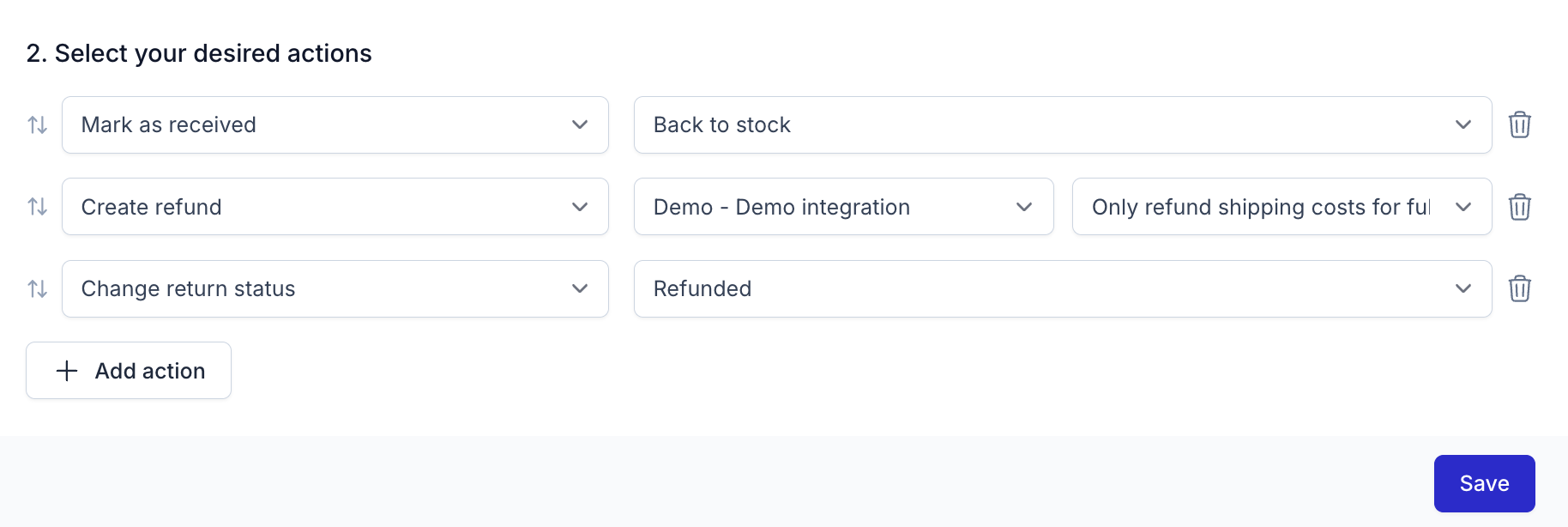
Available Actions
| Action | Description |
|---|---|
| Add note for customer | Adds a selected note template to the return (visible to the consumer). |
| Add note for shop | Adds an internal note template (not visible to the consumer). |
| Add tag | Adds a tag to the return or request. |
| Change return status | Updates return status (custom statuses supported). |
| Create coupon | Automatically generates a coupon for the order, with optional shipping refund. |
| Create giftcard | Creates a gift card for the order, with optional shipping refund. |
| Create refund | Creates a refund for the order, with optional shipping refund. |
| Create return | Creates a return automatically. |
| Finalize return | Marks the return as finalized. |
| Mark as received | Marks all items in the return as “received,” with an option to restock items. |
Re-runnable Automations
The Re-runnable toggle allows an automation to fire multiple times for the same return, instead of just once. This is useful for recurring actions — for example, automatically creating a refund each time a product is received, or adding a note on every status change.
Enabling Re-runnable
- Open the Return panel.
- Go to Settings > Return forms > open your form's settings.
- Select the Automations tab and open the relevant automation.
- Toggle Re-runnable to enable it.
How it works
By default, an automation runs once per return. With Re-runnable enabled, the automation can be triggered again as long as the trigger condition occurs again.
Examples:
- A Create note action fires every time a specific tag is added — not just the first time.
- A Create refund action is executed automatically each time a product is marked as received.
Loop prevention
To prevent automations from running endlessly, Returnless limits how often each action can execute within one return.
If that limit is reached — or if two automations keep triggering each other — the automation fails. The failure is logged in the return timeline.
| Action | Max. executions |
|---|---|
| Create refund / Create return / Finalize return | Max. amount of returned items |
| Create coupon / Create giftcard | Max. amount of returned items + 1 |
| All other actions | 25 |
Failed Automations
Sometimes an automation may fail due to internal or external factors.
How failures are shown
- A failure is logged in the return timeline, including the automation name.
- Opening the automation will display a warning if it has at least one failed execution.
Viewing failed automations
-
Click the automation name in the timeline or
go to Settings > Return forms > Return form settings > Automations and select the relevant automation.
- A link is provided to view the failed executions.
- Each failed entry includes a reason to help you diagnose the issue.
Note: Failed automations are stored for 30 days.