Shipping methods
Shipping methods allow your customers to return their orders in a smooth and customer-friendly way. For every return form in your Returnless account, you can individually enable or disable shipping methods.
Managing shipping methods
There are two types of shipping methods you can use:
-
Shipping methods on a Returnless contract
These methods use Returnless’ carrier contracts and prices.
-
Shipping methods on your own carrier contract
These appear when you connect your own shipping integration.
Enabling or disabling shipping methods
- Log in to your Returnless panel.
- Navigate to Return forms.
- Open the return form you want to edit.
- Click the Shipping methods tab.
You will now see all available shipping contracts in your account. Click on manage shipping methods to enable or disable shipping methods for a specific contract.
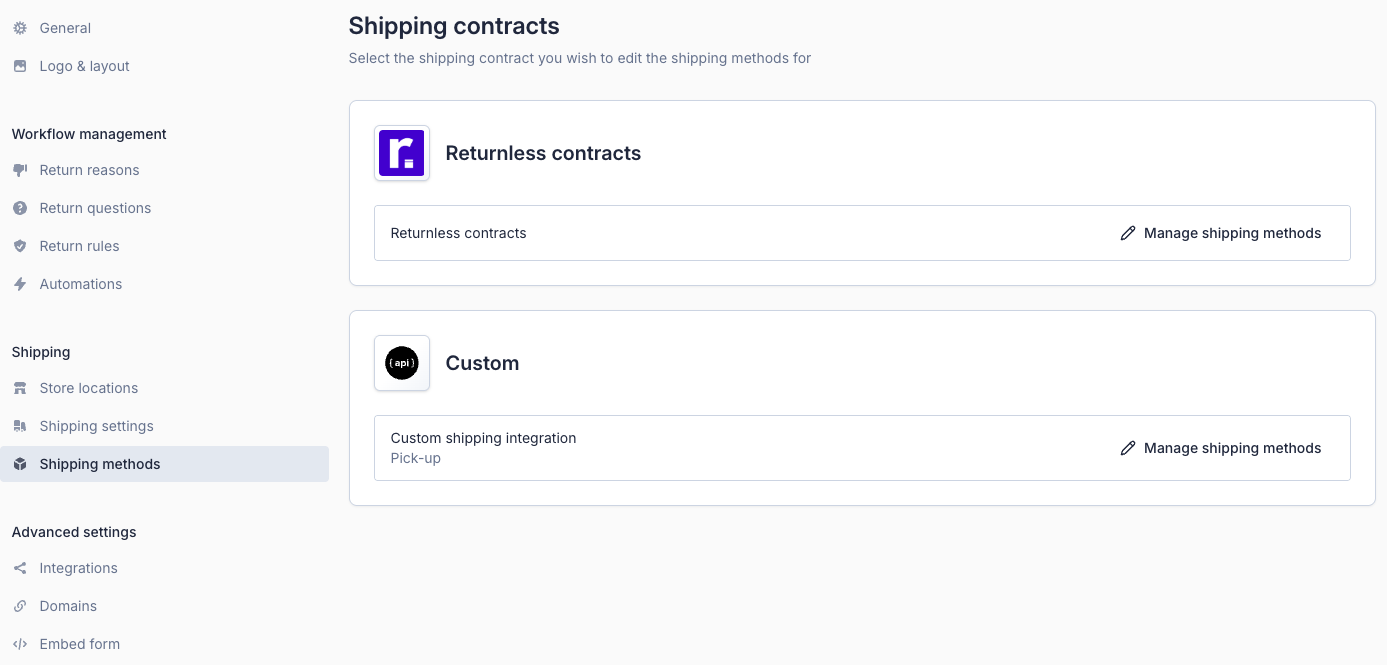
The type of shipping methods that are available within a contract is depending on:
- The From country is enabled in General settings → Countries.
- The To country matches at least one of your Return addresses.
Shipping method table
The shipping methods table shows all available return shipping options in your account. Each column provides specific information to help you manage and enable the right methods.
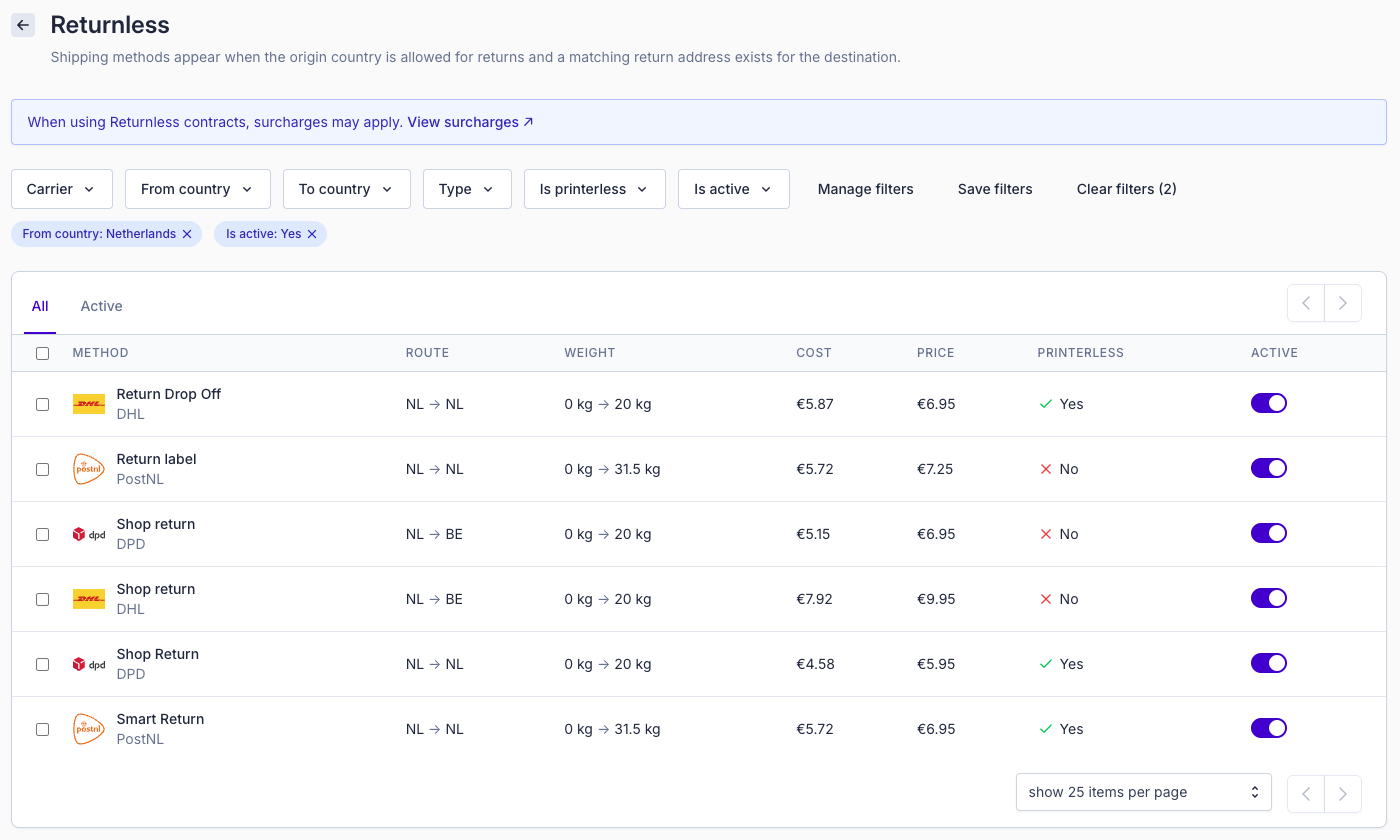
| Field | Description |
|---|---|
| Method | The name of the shipping method shown to consumers, including the carrier logo (e.g., DHL, PostNL, DPD). |
| Route | The return route for the method, displayed as From country → To country (e.g., NL → NL, NL → BE). Only methods matching your active origin countries and return addresses will appear. |
| Weight | The supported weight range for the method. Only returns within this range can be shipped using this option (e.g., 0 kg → 20 kg, 0 kg → 31.5 kg). |
| Cost | Your internal cost for using the method. This is what you pay the carrier or Returnless. |
| Price | The price you choose to charge the consumer for using this method (if applicable). |
| Printerless | Shows whether the method supports printerless returns. • Yes = a label is not required • No = the customer must print a label. |
| Active | A toggle indicating whether the shipping method is enabled for customers on the selected return form. When turned off, the method will not appear in the return form. |
Enabling or disabling shipping methods
You can enable or disable shipping methods directly from the shipping methods table in your Returnless panel.
To enable or disable a method:
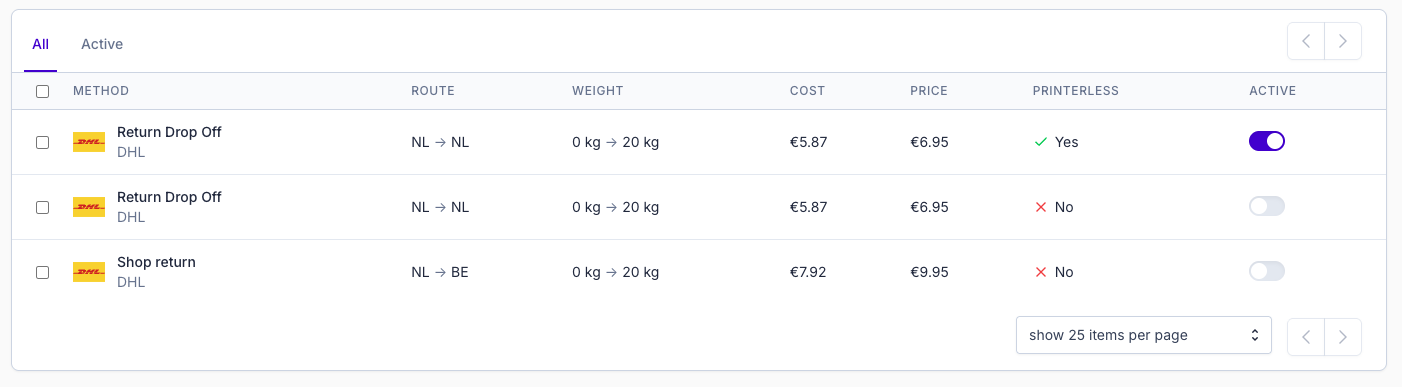
Use the Active toggle on the right side of each row.
- Blue (on) → The method is available to consumers in the return form.
- Grey (off) → The method is disabled and will not appear for consumers.
Bulk actions:
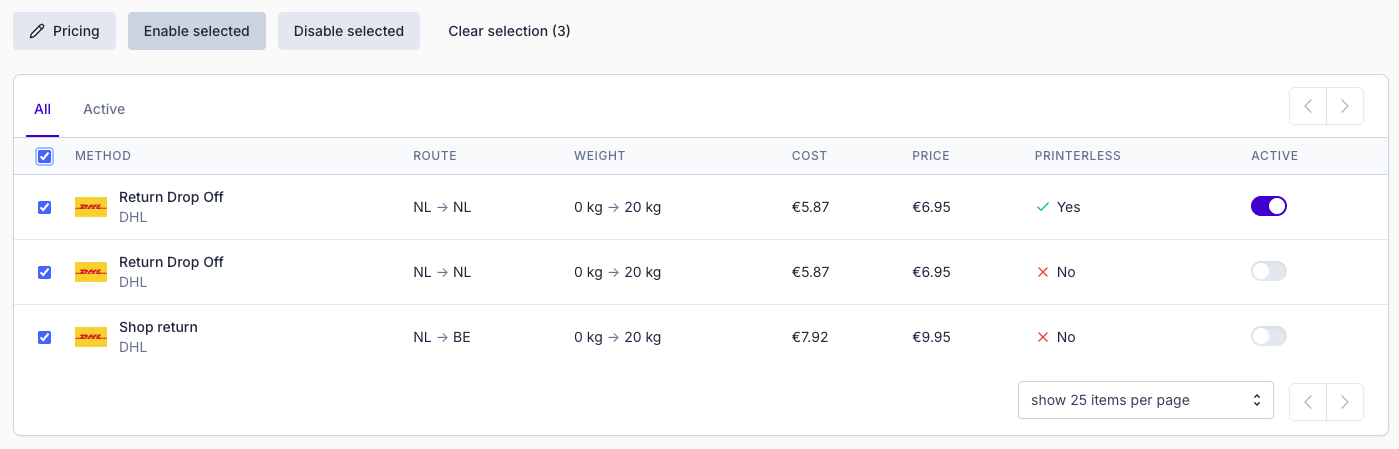
At the top of the table, you can select multiple methods and use the bulk action bar to:
- Enable selected
- Disable selected
- Clear selection
This allows quick updates when managing multiple methods at once.
Editing shipping methods
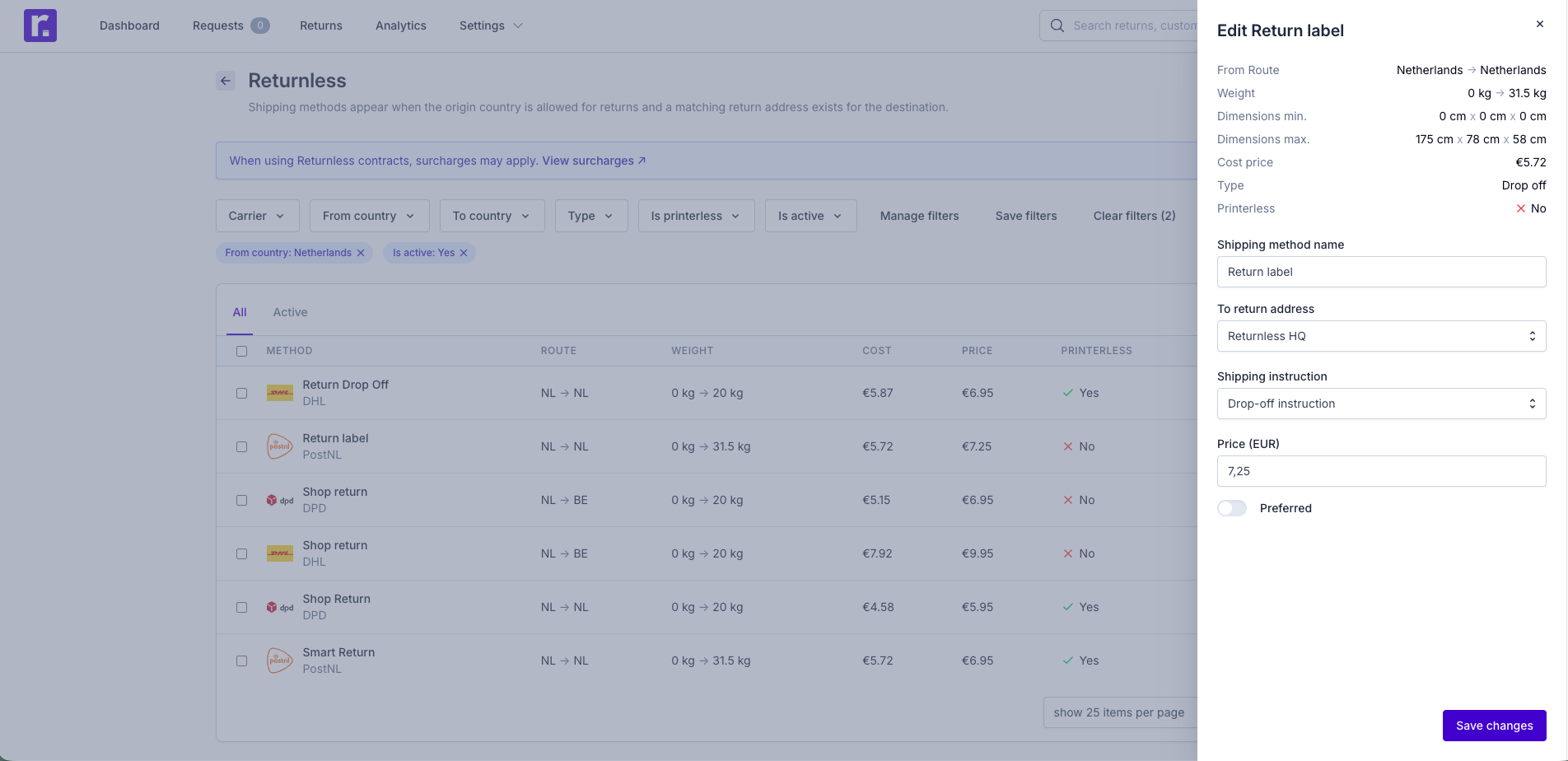
When you click on a shipping method in the shipping methods table, a panel opens on the right side of the screen. This panel allows you to edit all settings related to that specific method.
Shipping method details
At the top of the panel, you will see the technical details of the method. These values come from the carrier and cannot be changed:
- From route – The origin and destination country of the return route.
- Weight range – The supported weight window for this method.
- Minimum and maximum dimensions – Supported parcel dimensions.
- Cost price – Your internal cost for using the method.
- Type – The type of method (e.g., Drop-off, Home pickup).
- Printerless – Indicates whether the method supports printerless returns (Yes/No).
Editable settings
Below the method details, you can configure how this shipping method behaves for your customers:
-
Shipping method name
The name shown to consumers in your return form. You can customize this to match your branding or preferred labels.
-
To return address
Select the return address this method should use. Only return addresses matching the method’s destination country will be shown.
-
Shipping instruction
Choose the instruction shown to the consumer (e.g., Drop-off instruction, Pickup instruction).
These instructions help guide the customer during the return process.
-
Price (EUR)
Set the price you want to charge the customer for using this method.
The price you enter here is what the consumer sees in the return form.
-
Preferred (optional)
Marking a method as Preferred highlights it as the recommended choice in the return form.
When you're done adjusting the settings, click Save changes to apply your updates.
Bulk editing shipping method pricing
If you want to update the prices of multiple shipping methods at once, you can use bulk pricing.
- Select the methods you want to update using the checkboxes in the table.
- Click Pricing at the top of the table.
- A modal will appear with three options:
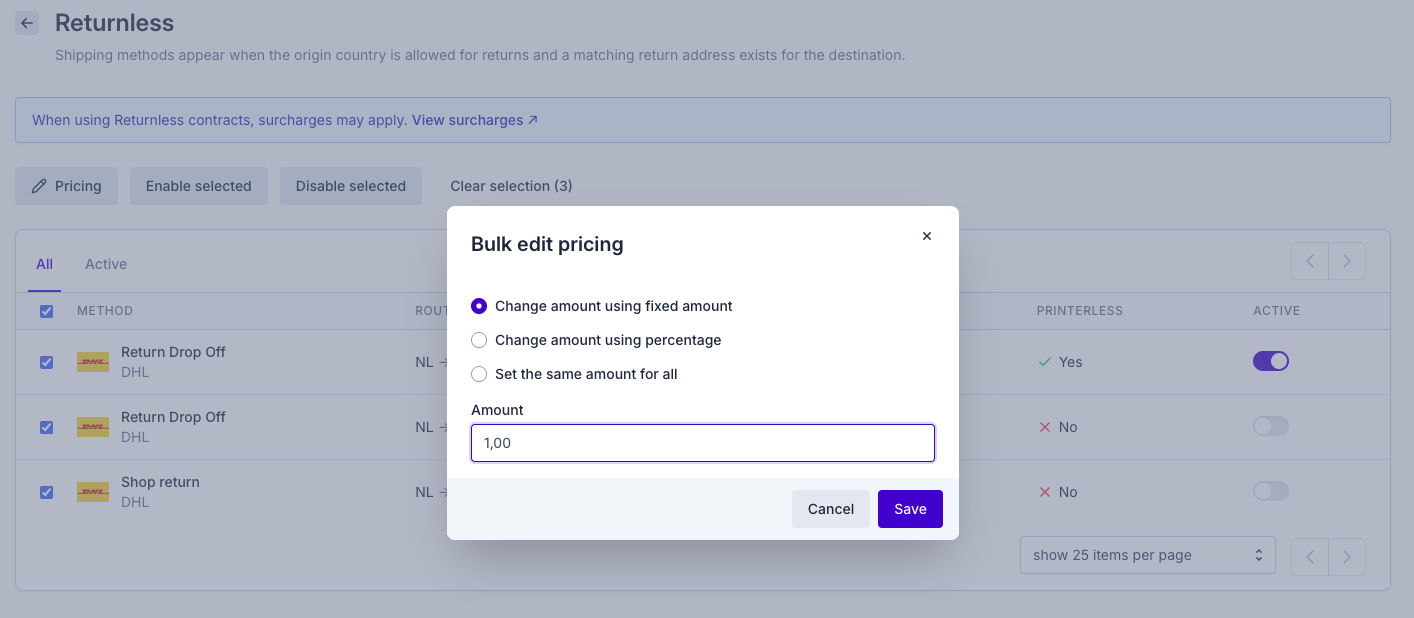
Change amount using fixed amount
Apply a fixed increase or decrease to the selected pricing.
For example: entering 1,00 increases all prices by €1.00.
Change amount using percentage
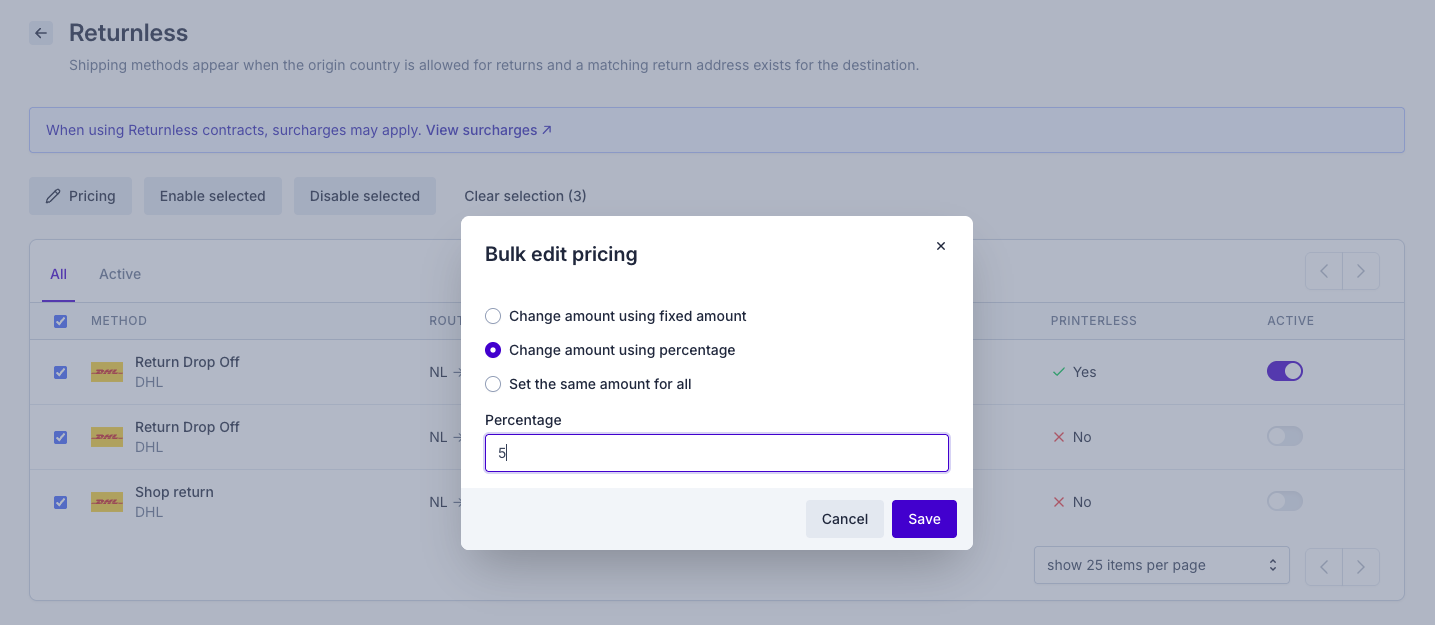
Increase or decrease the selected pricing by a percentage.
For example: entering 5 increases all prices by 5%.
Set the same amount for all
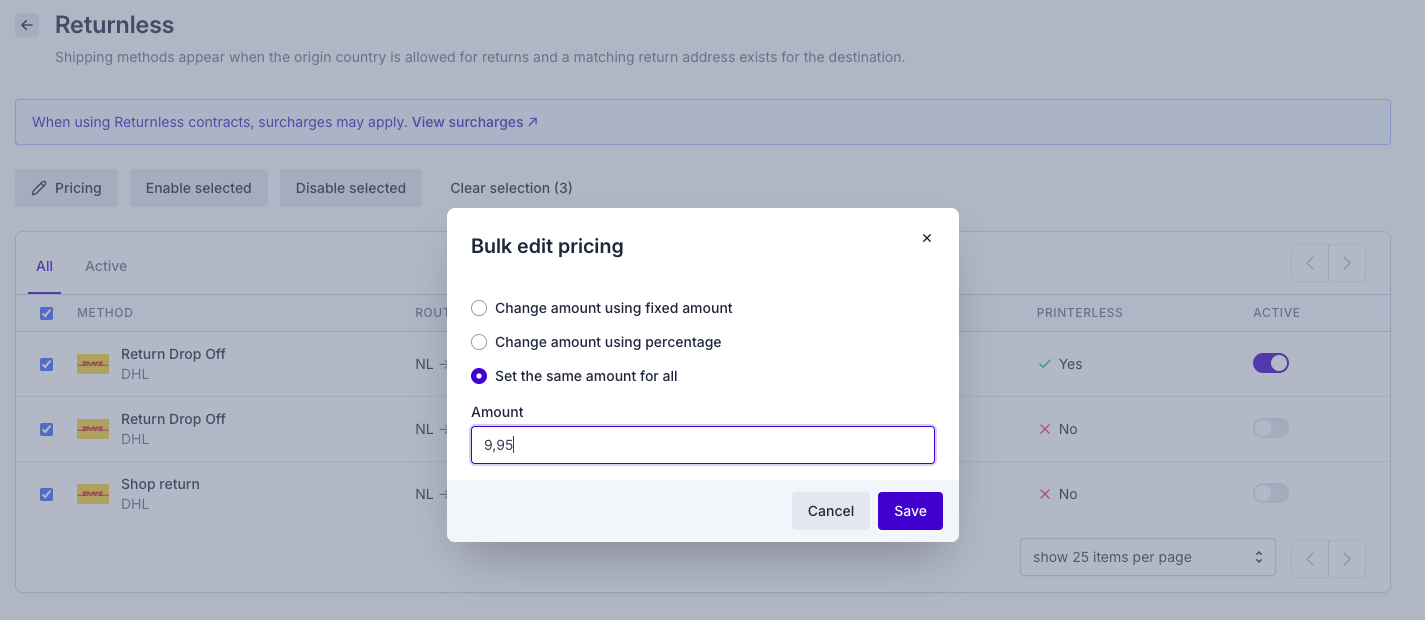
Set one identical price for all selected methods.
For example: entering 9,95 sets every selected method to €9.95.
Click Save to apply your changes to all selected shipping methods.