Domains
You can customize the domain of your Returnless return form to make it easier for customers to access.
For example: https://travelshop.returnless.com
Using dedicated domains helps reinforce your brand identity and keeps the return process intuitive for customers.
In this article:
Subdomains
Returnless hosts and manages all subdomains, making it easy to set them up. By default, your return form uses your company name as the domain, but you can change it to any available subdomain.
You can also set different subdomains for different languages. This is especially useful if your webshop name varies per country or market.
Adding a Subdomain
Follow these steps to add and configure your subdomain:
- Log in to your Returnless panel and navigate to Return forms.
- Select the return form you want to edit and open the Domains tab.
- Enter your desired subdomain in the Add custom domain input field.
-
Click Add domain — the new domain will appear in your list.
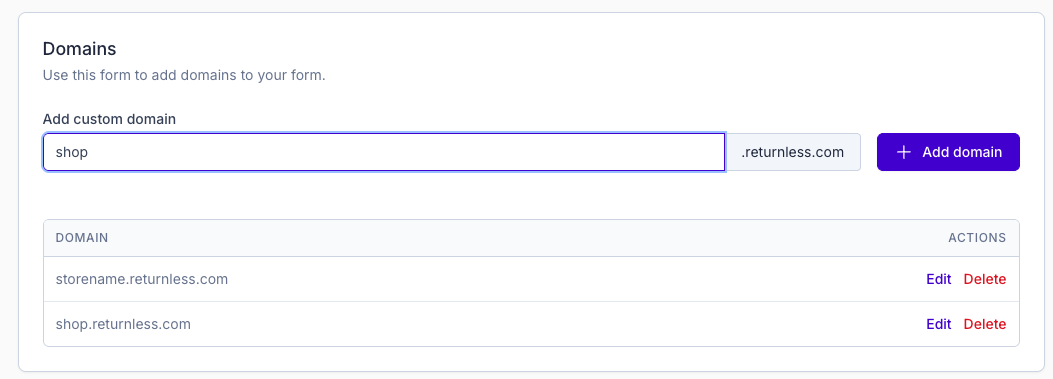
- Assign the domain to a specific language by choosing it from the language dropdown.
-
Click Save to confirm your settings.
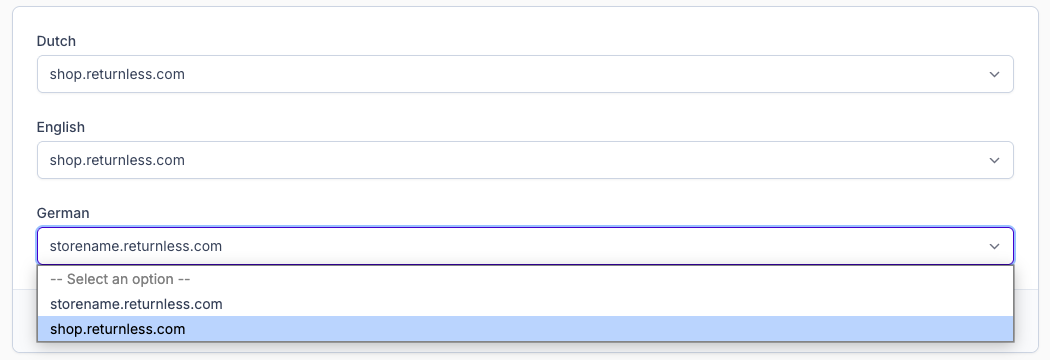
Your return form will now be available through the newly added domain.
Browser Language Redirect
To configure how the correct language is selected for customers, check your return form’s General Settings.
You can provide a unique domain link for each language used in your return form.
These links will be used to automatically redirect customers based on their browser language.
Returnless will redirect customers as follows:
- If a language-specific link is provided → users are redirected to that link.
- If no link is provided → we redirect to the page matching the user’s browser language (if available).
- If that language is not available or the browser has no language set → we redirect to the default language of the return form.