Note templates
Note Templates
Note templates are a powerful way to prepare consistent, pre-written communication for your customers during both the request and return processes. They help streamline your workflow, reduce manual typing, and ensure messages remain clear and uniform across your team.
In this article:
- Accessing Note Templates
- Creating a New Note Template
- Configuring Your Note Template
- Using a Note Template
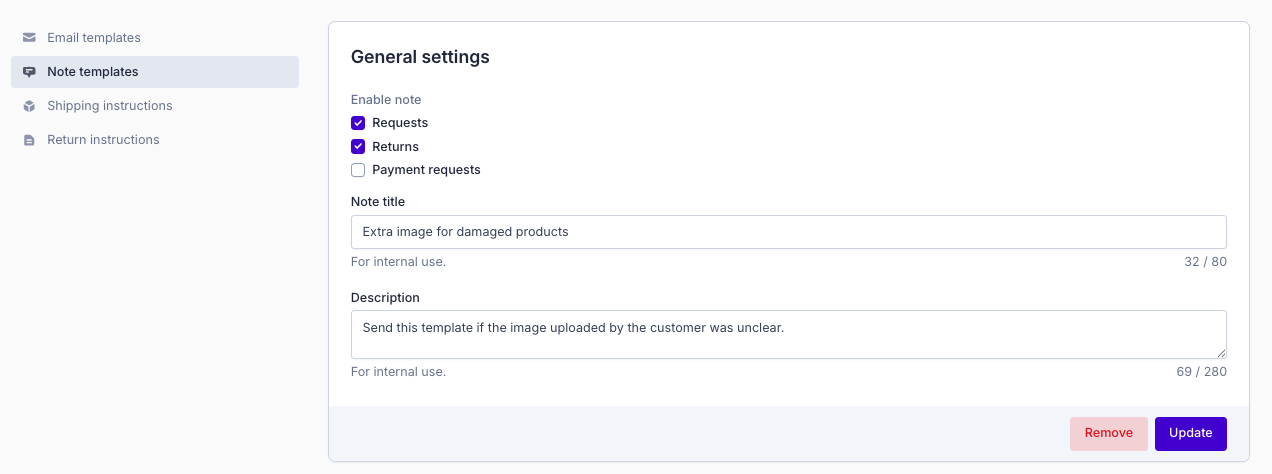
- Editing a Note Template
- Deleting a Note Template
Accessing Note Templates
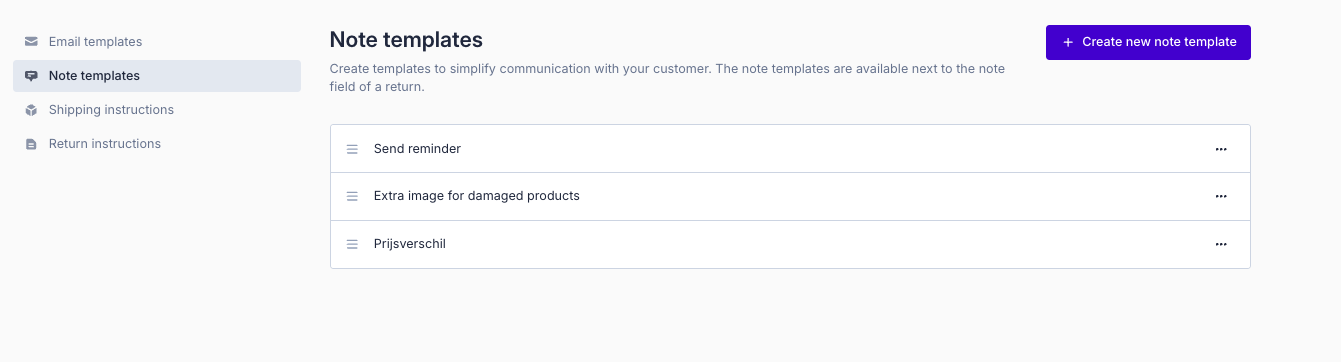
To access your note templates:
- Log in to your Returnless panel.
- Navigate to Settings > Templates.
- Select the Note Template tab.
Creating a New Note Template
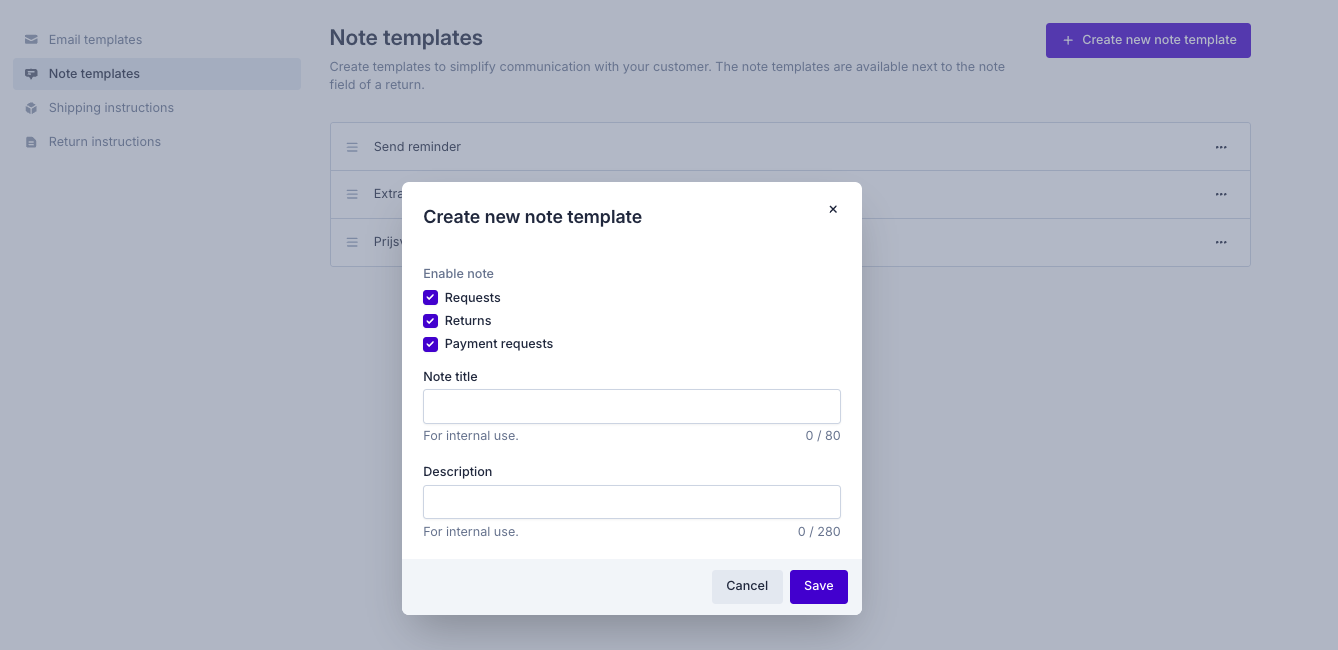
- In the Note Template tab, click Create new note template in the top-right corner of the screen.
- Give your template a title and description (for internal reference).
- Choose whether the template should be available for returns, requests, payment requests or all three.
- Click Save.
After saving, you can begin configuring your template for each language activated in your account.
To manage the languages available in your account, see Languages in General Settings.
Configuring Your Note Template
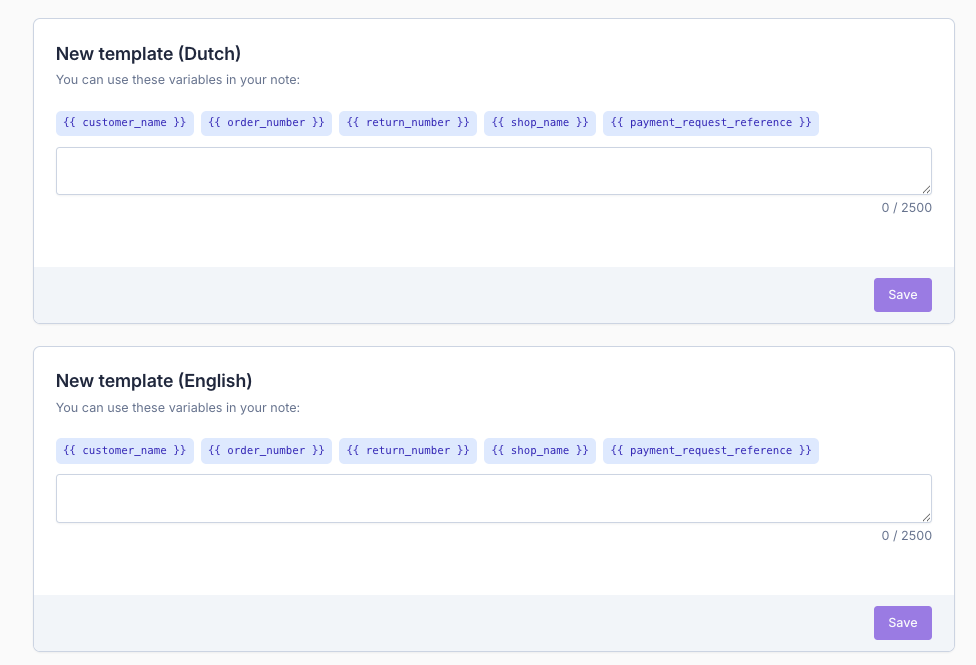
Once your template is created, you can:
- Define language-specific versions for every active language.
- Insert variables related to the request or return, ensuring the message dynamically reflects customer-specific information.
These variables help personalize your communication without requiring manual edits.
Using a Note Template
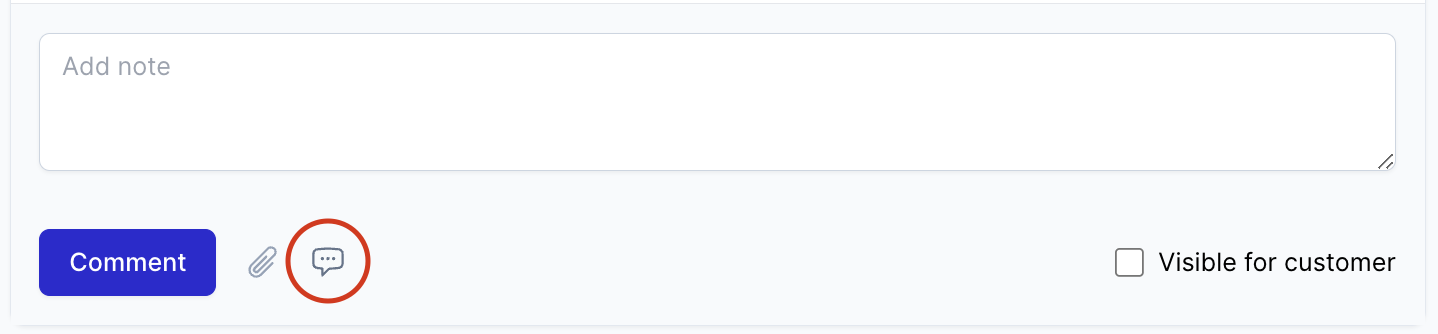
When processing a request or return, you can insert a note template directly into your customer note.
- Open the relevant request or return.
- Click the chat icon in the note field.
- Select any available note template to insert it into your message.
This allows you to send consistent, accurate information quickly.
For more details about processing requests or returns, see Processing a Request and Processing a Return.
Editing a Note Template
- Go to Settings > Templates.
- Select the Note Template tab.
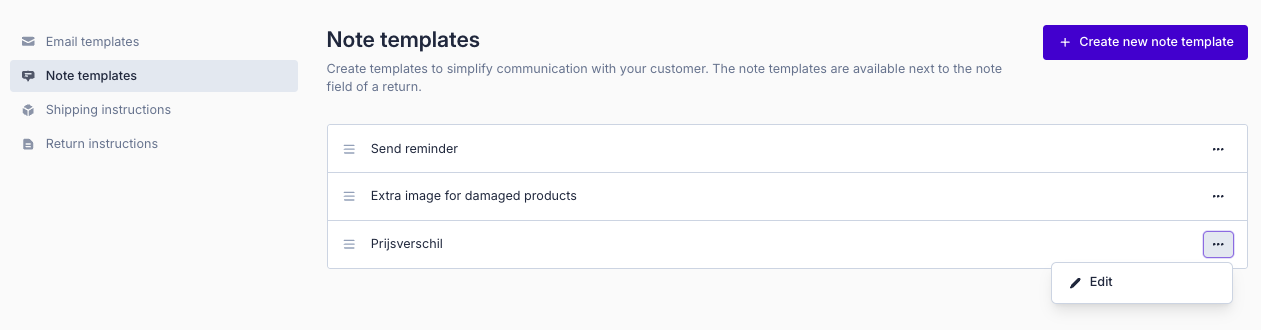
- Choose the template you want to edit.
- Adjust any fields as needed and click Save.
Your changes will apply immediately wherever the template is enabled.
Deleting a Note Template
- Go to Settings > Templates.
- Select the Note Template tab.
- Open the template you want to delete.
- Click Remove.
- Confirm the deletion in the modal that appears.